Planner
| Term | Definition |
|---|---|
| Frequency | Number of slots a booking occupies per loop (default = 1). |
| Loop order | Drag-and-drop drawer to set content order. |
| Preview loop | Shows expected output. |
Using the Planner
To plan content playback for a display:
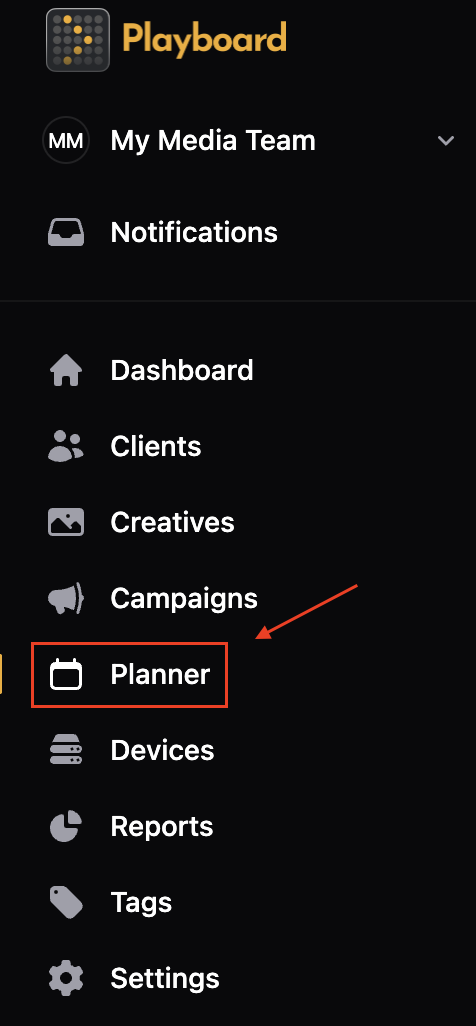
- Open the Planner page
- From the left sidebar, click Planner.
- Select a display
- At the top of Planner, choose the Display you want to plan for.
- The main table will populate with all bookings assigned to that display.
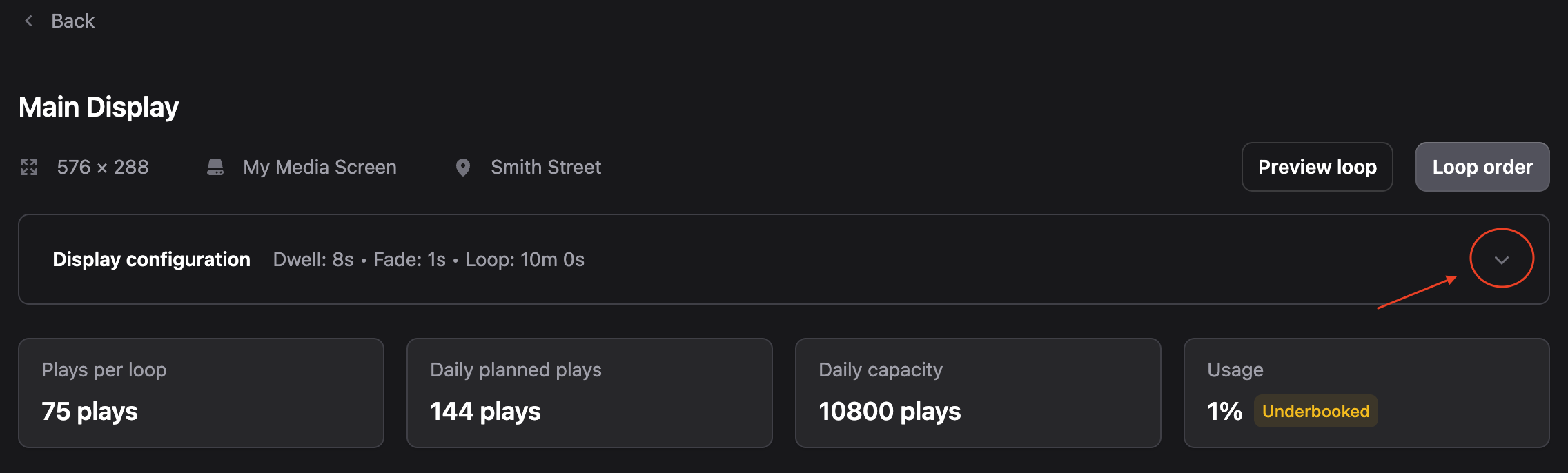
- Review display configuration
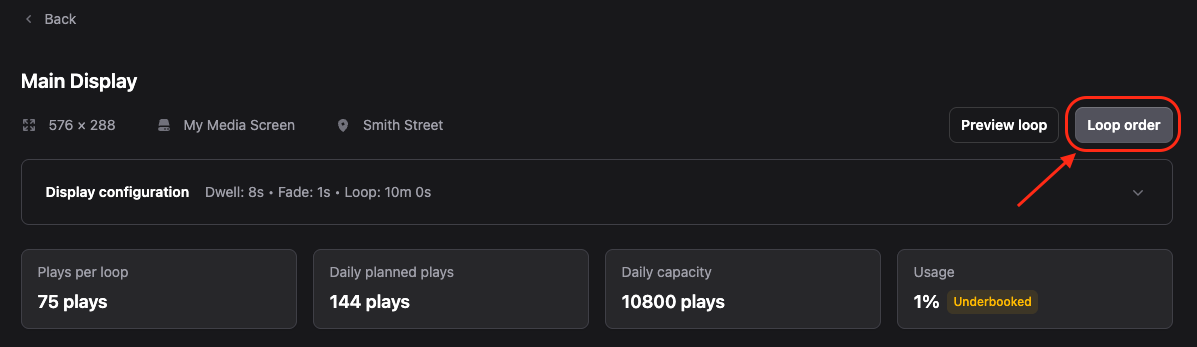
- Review Display configuration values:
- Dwell time — how long each creative shows before transition (seconds).
- Fade duration — transition time between creatives (seconds).
- Loop length — total time for one full rotation (minutes/seconds).
- Review Display configuration values:
- Review capacity metrics
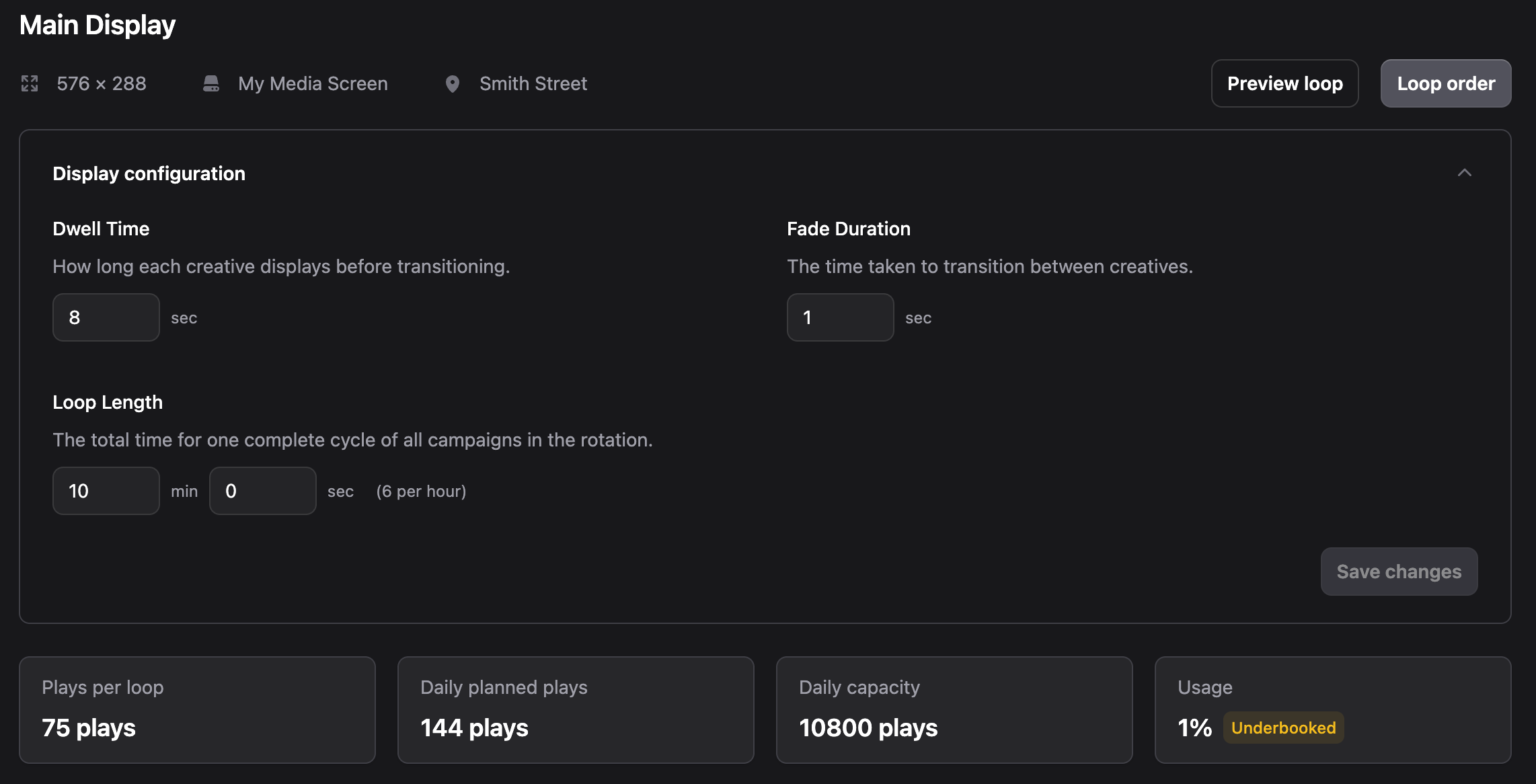
- Review capacity tiles (below config):
- Plays per loop — how many creatives play in one loop.
- Daily planned plays — scheduled plays per day (based on bookings/frequencies).
- Daily capacity — maximum possible plays per day given loop length and dwell time.
- Usage — % of capacity used.
- Review capacity tiles (below config):
- Use the calendar
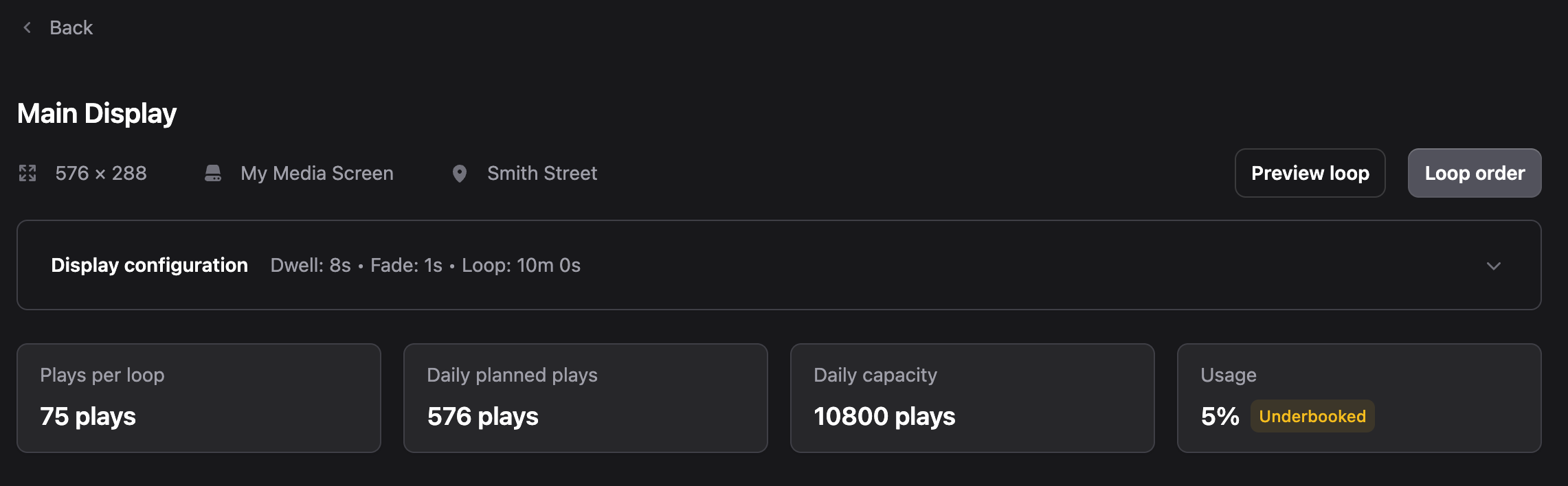
- Use the calendar to inspect booking start & end dates.
- The calendar shows coloured badges (green/red) that indicate relative changes (e.g., +1 / −1).
- Click a day to highlight in the list, which bookings will change on that date.
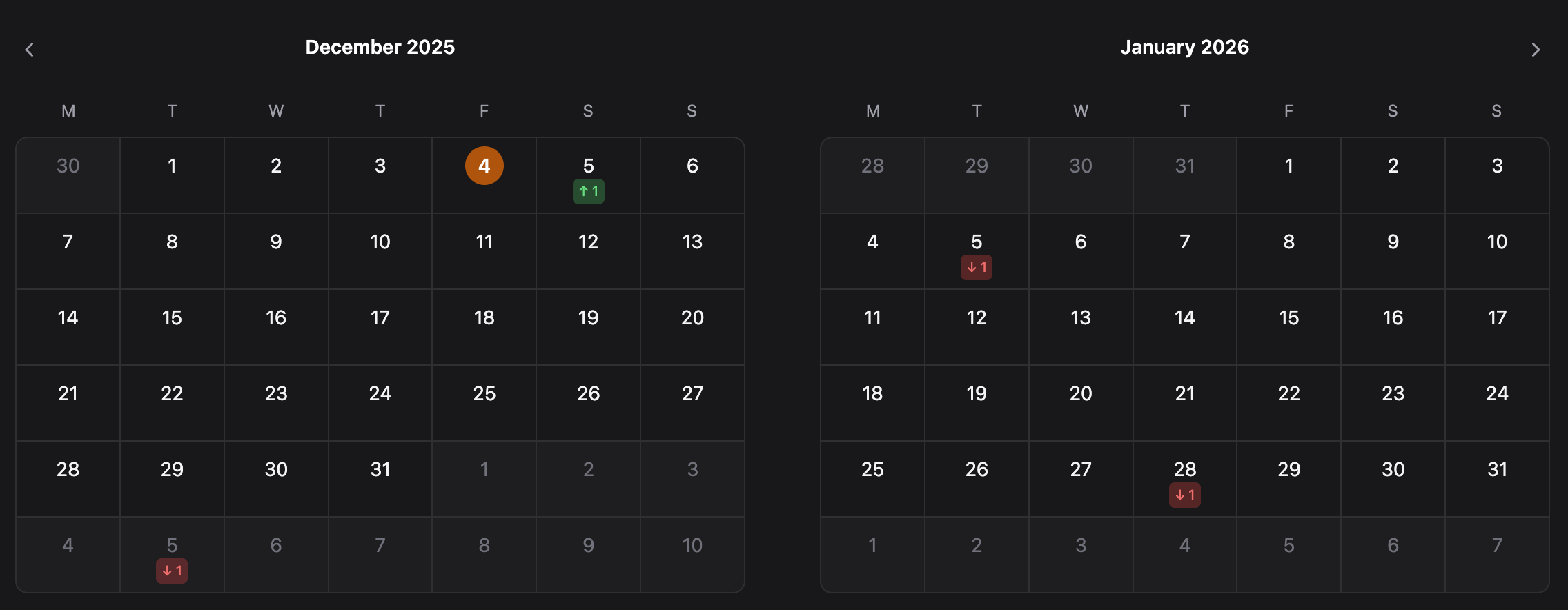
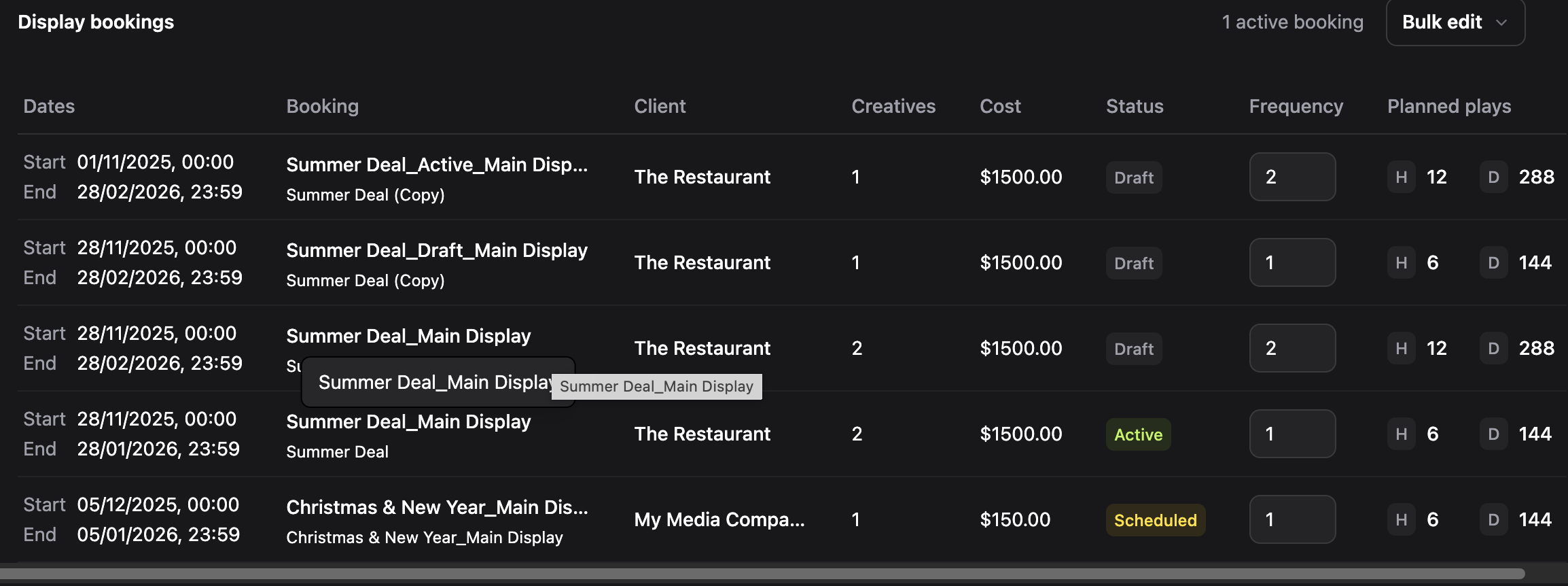
Understanding the Bookings Table
The table lists all bookings assigned to the selected display. Key columns:
| Column | Description |
|---|---|
| Dates (Start / End) | Booking window. |
| Booking | Booking name (hover to see full title). |
| Client | Client/account name. |
| Creatives | Number of creatives assigned. |
| Cost | Booking cost if used. |
| Status | Draft / Scheduled / Active / Paused. |
| Frequency | Slots per loop (editable inline). |
| Planned plays | H (per hour) and D (per day) counts and totals. |
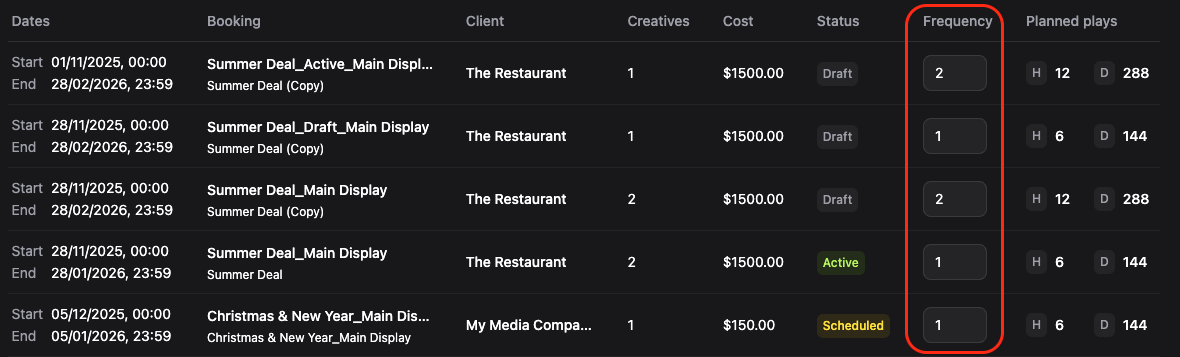
Editing Frequency
To assign slots to a booking:
- Click the frequency cell
- In the Frequency column, click a booking's frequency cell (default = 1).
- Enter the slot count
- Enter the slot count you want the booking to occupy each loop (e.g., 2).
- Frequency = number of slots per loop; higher = appears more often.
- Save the change
- Frequency change updates planned plays (hour/day totals) immediately.
Bulk Editing Frequencies
To edit frequencies for multiple bookings at once:
- Open bulk edit
- Click Bulk edit (top right of table).
- Choose an action
- Set frequency for all bookings — set the same frequency value for all bookings.
- Multiply frequencies — multiply all frequencies by a given number.

Setting Loop Order
To set the playback sequence:
- Open Loop order
- Click Loop order to open the drag-and-drop list of loop items.
- Reorder items
- Drag items up/down to reorder how they will appear in a single loop.
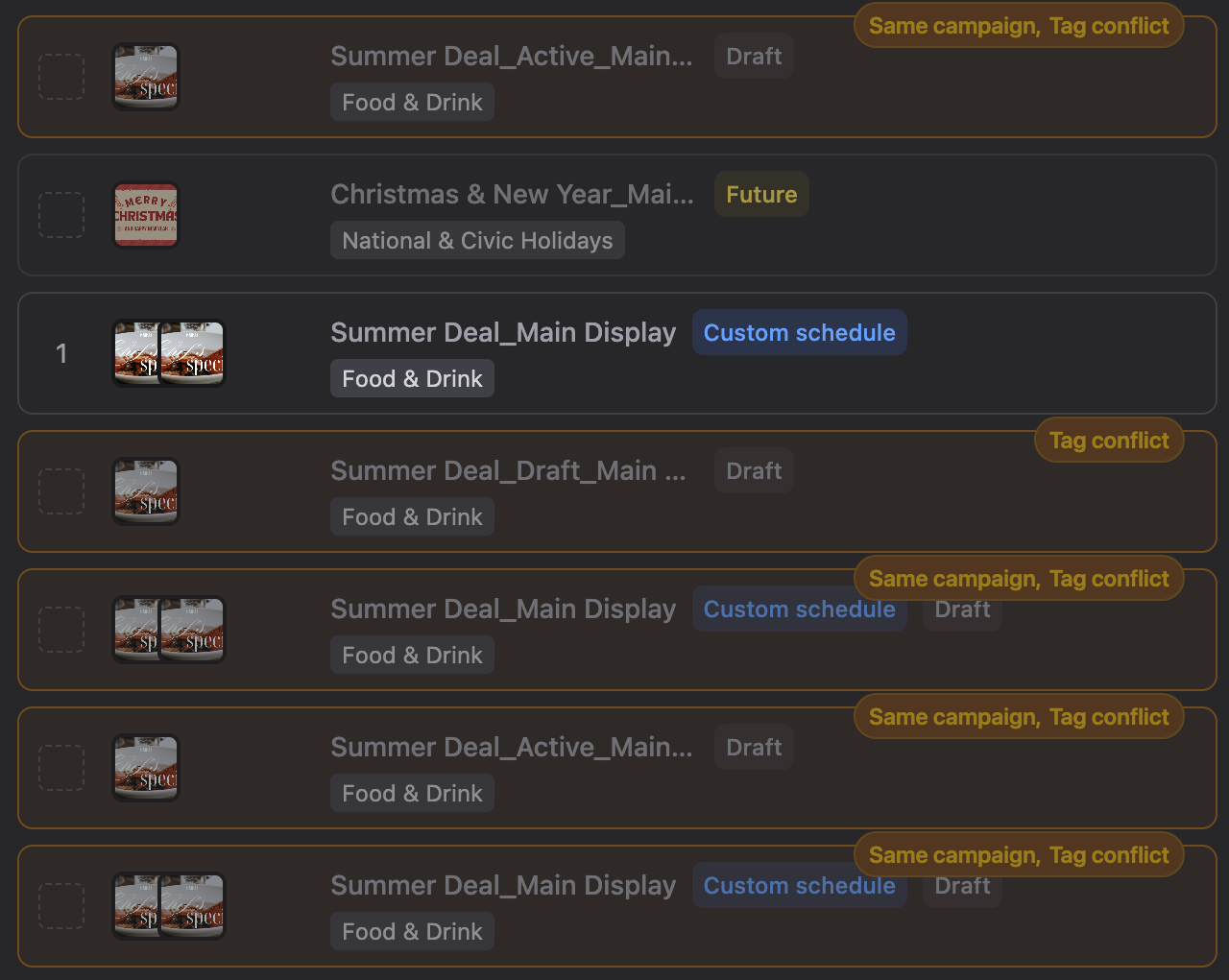
- Items show thumbnails, booking name, status, tags and badges (e.g., Custom schedule, Draft, Tag conflict).
info
Note: Frequency controls how many slots an item occupies; Loop order controls the sequence.
Sorting Bookings
To automatically sort bookings using presets:
- Open Sort bookings
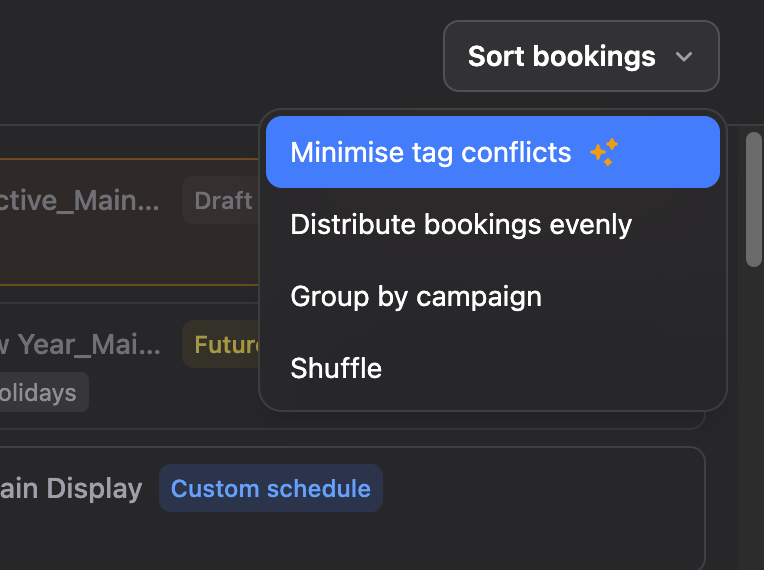
- In the Loop order drawer, click Sort bookings to open options.
- Choose a preset
- Minimise tag conflicts — prioritises distribution so items with the same tags don't run back-to-back.
- Distribute bookings evenly — spaces bookings evenly across the loop.
- Group by campaign — clusters items from the same campaign.
- Shuffle — randomise order.
- Fine tune if needed
- Choose a preset to auto-sort, then fine tune with drag & drop if needed.
Previewing the Loop
To view the expected playback:
- Open Preview loop
- Click Preview loop to view the expected playback generated by current Loop order + Frequency + schedule restrictions.
- Navigate the preview
- Use the controls to jump to specific iterations or timestamps.
- The preview shows the exact sequence that will play based on your current settings.