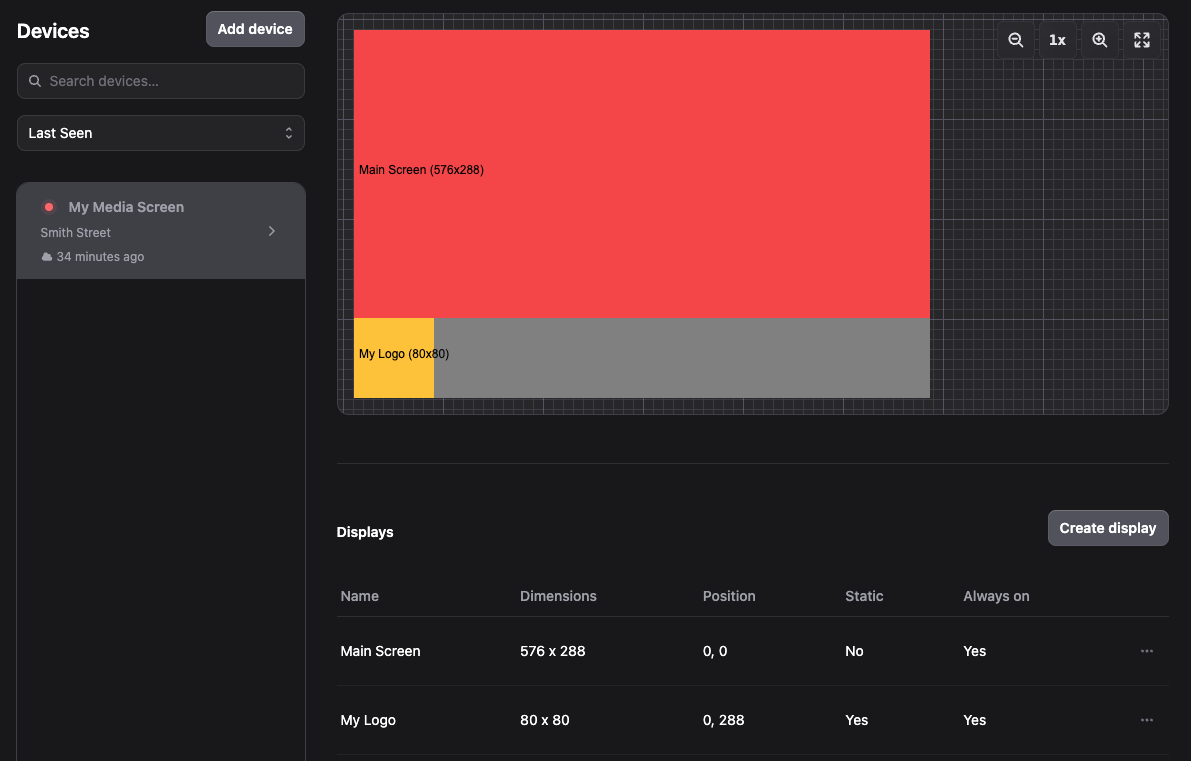
Devices
If you want to add a new device, you can follow the same steps from here.
Configuring a Device
To edit device settings:
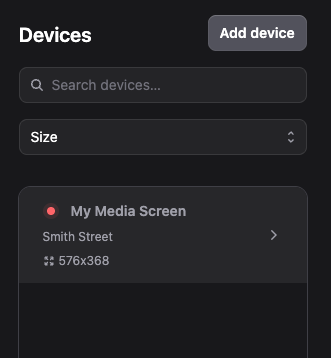
- Select the device
- Select the device in the list.
- Open edit dialog
- Click Edit.
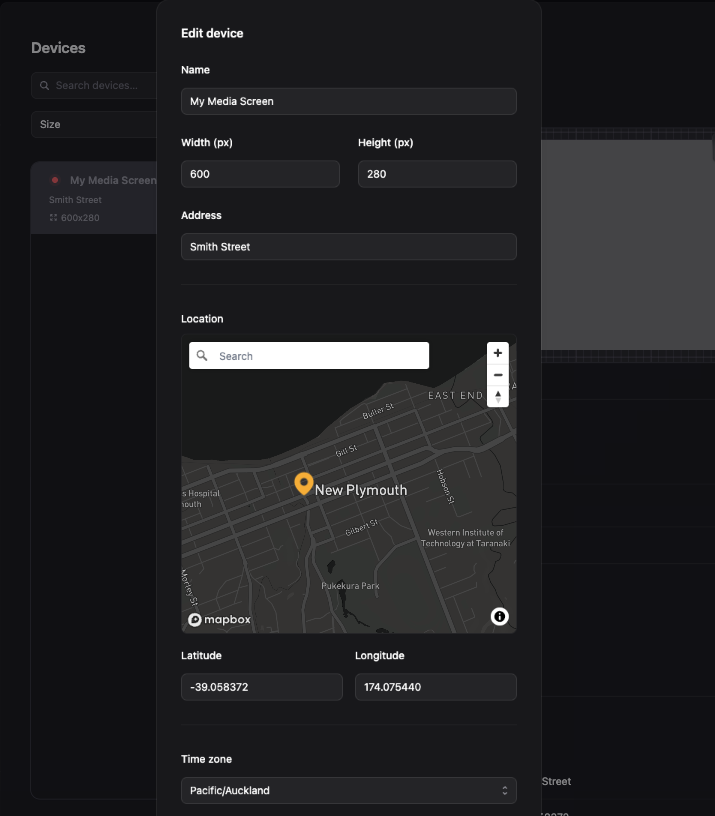
- The Edit device dialog will open.
- Update device details
- Name: Enter or update the device name.
- Width (px): Enter the device width in pixels.
- Height (px): Enter the device height in pixels.
- Address: Enter the device address (optional).
- Location: Set the device location using the map picker (optional).
- Time Zone: Select the device time zone (optional).
Note: The width and height entered will be the size of the player window on the device.
- Save changes
- Click Save changes to update the device.
Adding a Display
To add a new display to a device:
- Open the Devices page
- Navigate to the device you want to add a display to.
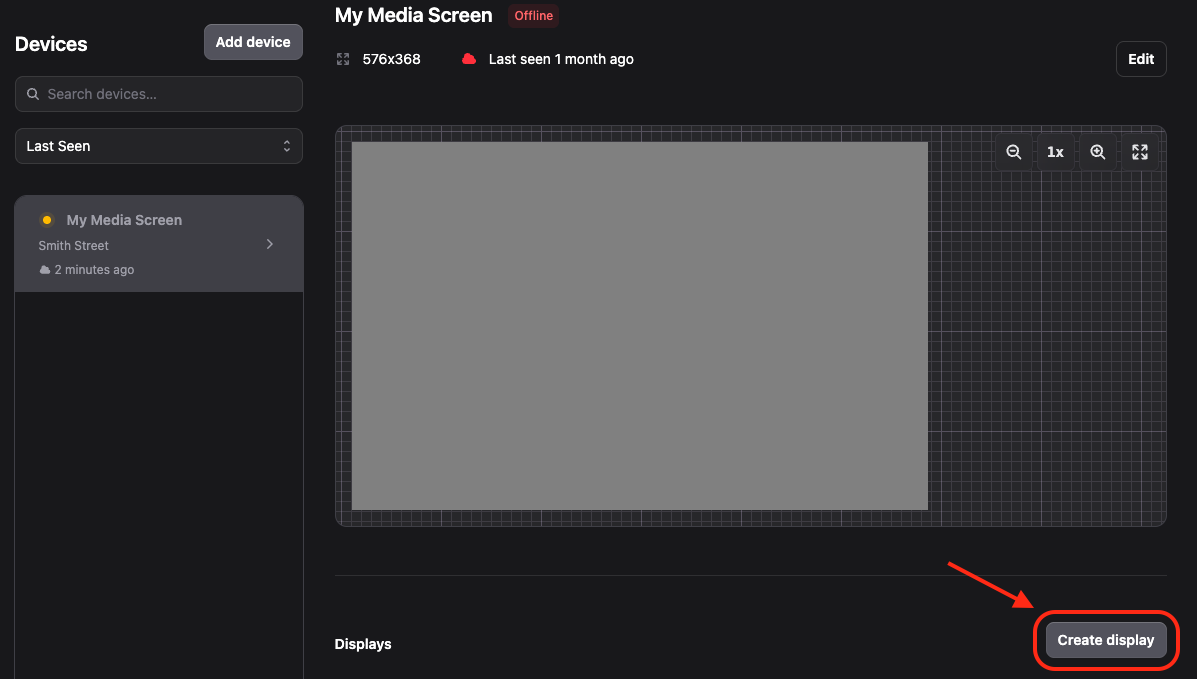
- Click "Create display"
- Click Create display on the Devices page.
- The Add new display dialog will open.
- Configure display settings
-
Static Display (optional): Leave it OFF to allow campaign-based content.
-
Name: Enter a clear display name (e.g., "Main Screen" or "Smith Street Screen"). Required
-
Width (px): Enter the screen width in pixels. Required
-
Height (px): Enter the screen height in pixels. These values should match the display area's actual resolution. Required
-
Position X (px): Horizontal position from the left. Position is relative to the top-left corner of the device. Use
0to start from the left edge. Required -
Position Y (px): Vertical position from the top. Position is relative to the top-left corner of the device. Use
0to start from the top edge. Required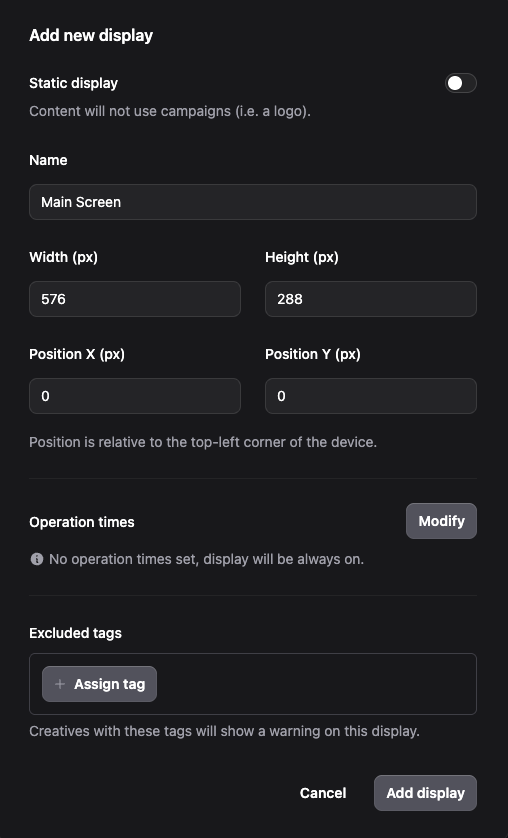
-
Scaling Mode: Select a scaling mode from the dropdown to choose how content fits the display.
-
Fit to display: content will stay contained to the display and black bars may be added. Aspect ratio is preserved.

-
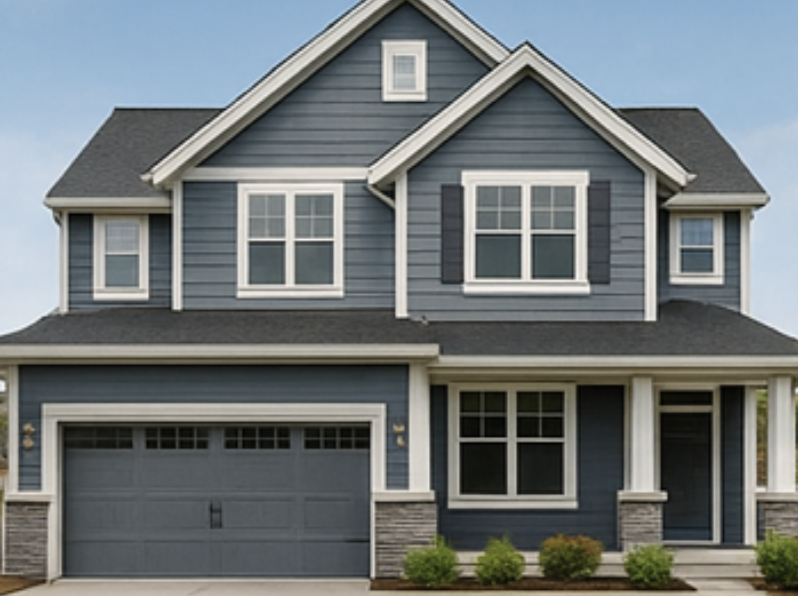
Fill display: content will cover the display and may be cropped. Aspect ratio is preserved.
-
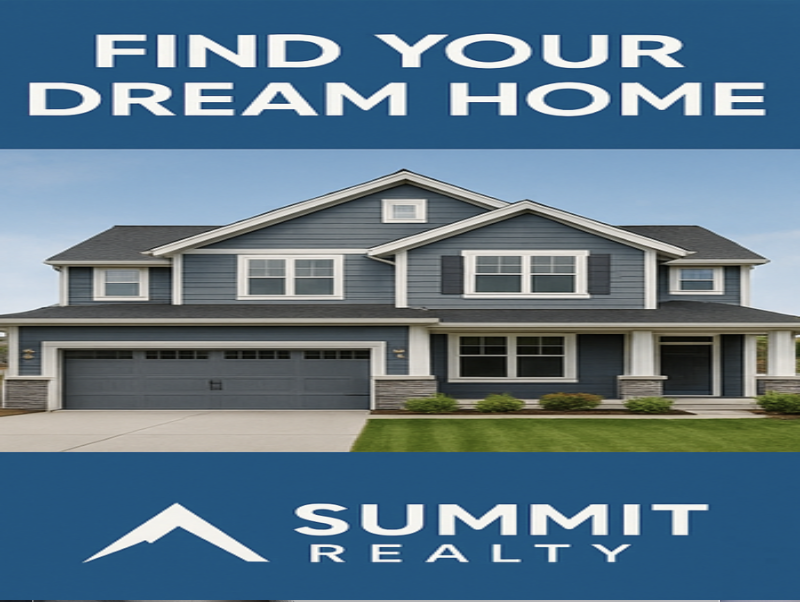
Stretch to fit: content will be stretched to match the display. Aspect ratio may not be preserved.
-
-
- Set optional settings
- Operation Times (optional): Click Modify to set specific operating hours. If not set, the display will always remain on.
- Excluded Tags (optional): Click Assign tag to exclude certain tagged creatives. Creatives with excluded tags will trigger a warning on this display.
- Save the display
- Click Add display to save.
- The display will appear in the device's display list.
Adding Additional Displays
To add multiple displays to the same device:
- Ensure device canvas is large enough
- First, ensure that the device canvas is large enough to fit all the displays that you want to add.
- You may need to edit the device width/height if adding larger displays.
- Repeat the process
- Repeat the steps above to add additional displays to the same device.
- Each display can have its own position, size, and settings.
Adding Static Content (Logo)
To add a static logo display that shows fixed content:
- Create a static display
- Click Create display on the Devices page.
- Toggle Static display to ON. This tells Playboard that this display will show fixed content only (e.g., a logo) and will not use campaigns.
- Enter display details
- Name: Enter a clear name (e.g., "Company Logo"). Required
- Width (px): Set the size of the logo area in pixels. Match this to the logo's desired display size. Required
- Height (px): Set the height of the logo area in pixels. Required
- Position X (px): Define where the logo appears horizontally on the screen.
0places it at the left edge. Required - Position Y (px): Define where the logo appears vertically on the screen.
0places it at the top edge. Required
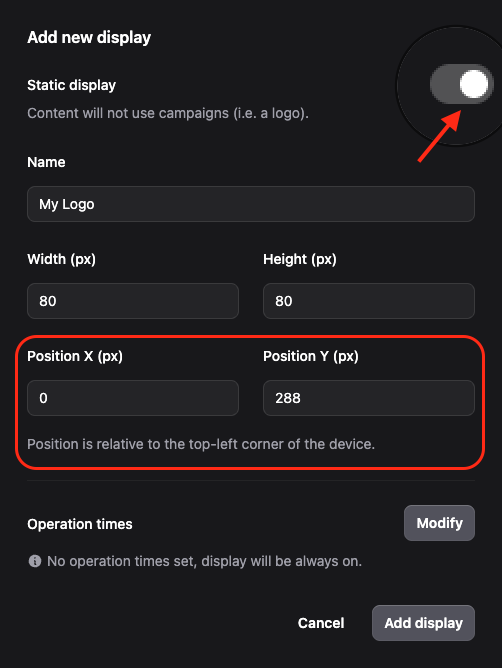
Tip: Position is measured from the top-left corner of the device screen.
- Save the display
- Review your settings.
- Click Add display to save.
- Upload the logo
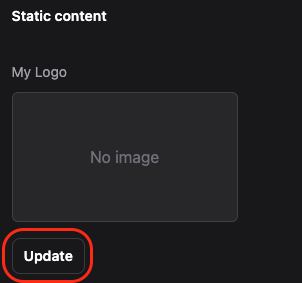
- Still on the same Device page, scroll down to Static content.
- Find your static display in the list.
- Click Update next to the display.
- Upload your Logo image in the dialog.
- Click Save changes to confirm.
Note: The logo will appear continuously on the selected device. It will not rotate, not follow campaigns, and stay fixed on screen.