Campaigns
| Term | Definition |
|---|---|
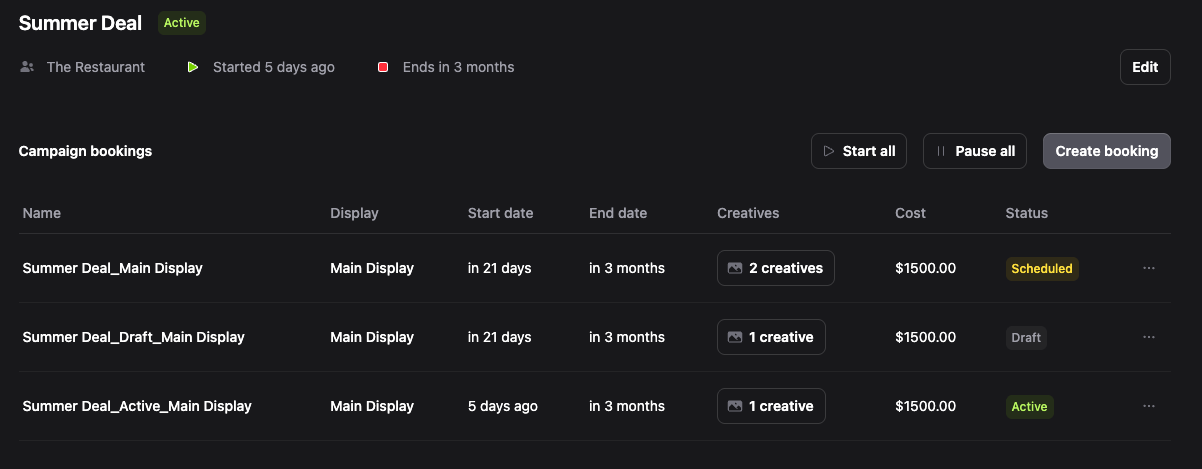
| Campaign | A group of bookings. Campaign metadata is persisted, but its timing/status is derived from bookings. |
| Booking | A scheduled item that targets a display. Bookings start as Draft and can be set to Active or Paused. |
| Schedule restrictions | Per-creative rules (time of day, day(s) of week, date range) that control when a creative may play. |
| Clone creative / Swap creative | Reuse rules or replace content while keeping the same playback restrictions. |
Creating a Campaign
To create a new campaign:
- Open the Campaigns page
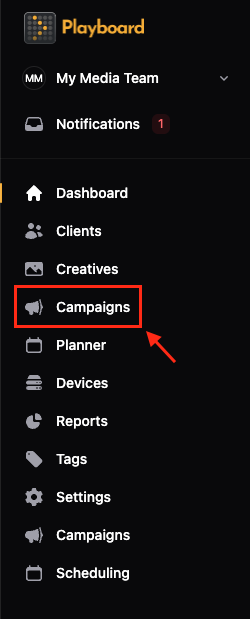
- From the left sidebar, click Campaigns.
- Select a folder (optional)
- Navigate to the folder where you want to add the campaign, or stay in the root folder.
- Campaigns will be added to the currently selected folder.
- You can create new folders by clicking the New folder button.
- Click "Create campaign"
- Click the Create campaign button in the top-right.
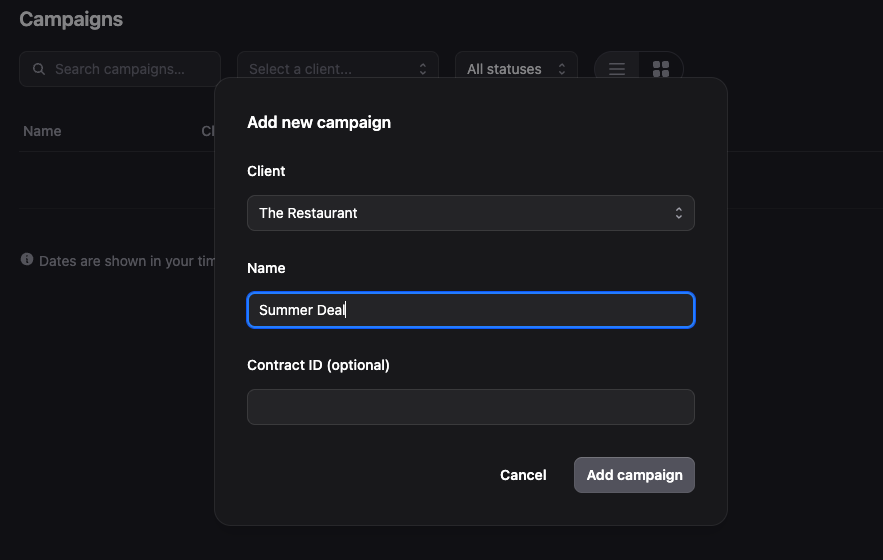
- The Add new campaign modal will open.
- Fill in campaign details
- Client: Select a client from the dropdown.
- Name: Enter a campaign name (e.g., "Summer Promo 2024"). Required
- Contract ID (optional): Enter a contract ID to keep track of agency bookings.
- Save the campaign
- Click Add campaign to save.
- The campaign will appear in your Campaigns list.
Adding Bookings to a Campaign
To add a booking to an existing campaign:
- Open the campaign
- Click on a campaign from the list to open its details page.
- Click "Create booking"
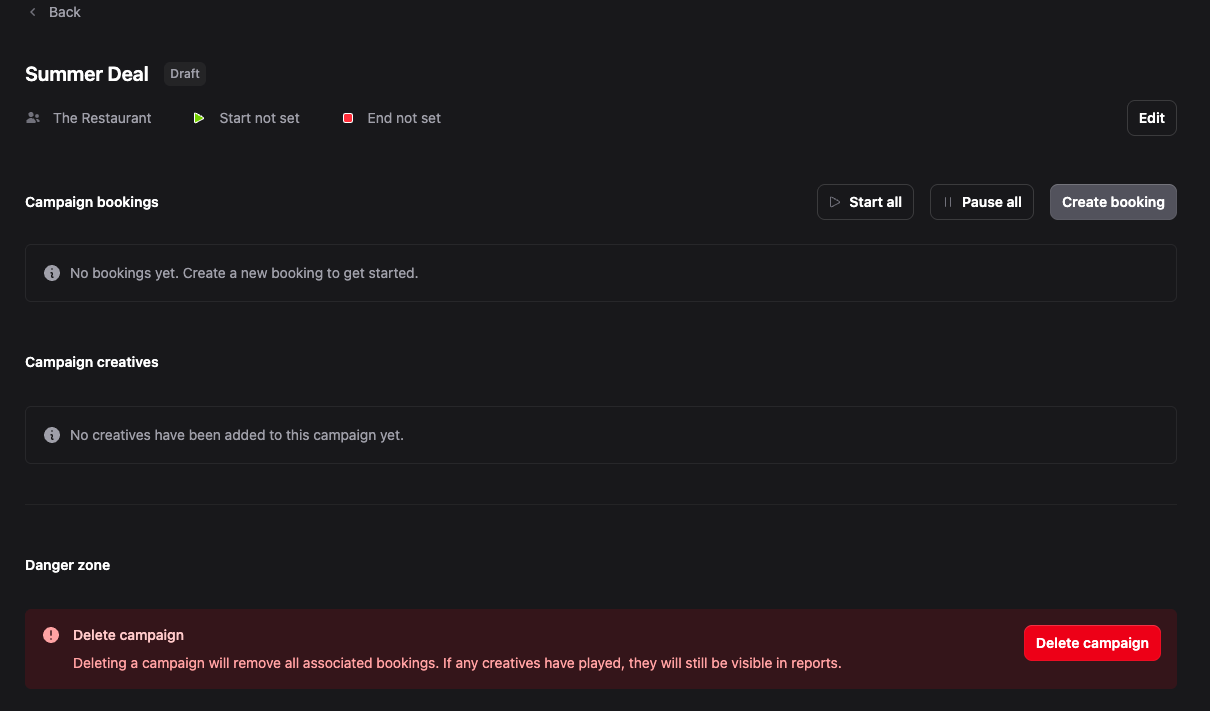
- Inside the campaign, click the Create booking button.
- The booking creation dialog will open.
- Select a display
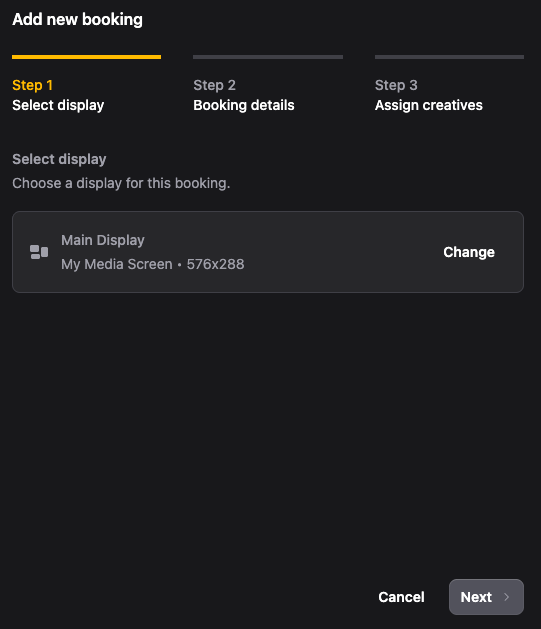
- Select the Display the booking will target (remember, one display can hold many bookings).
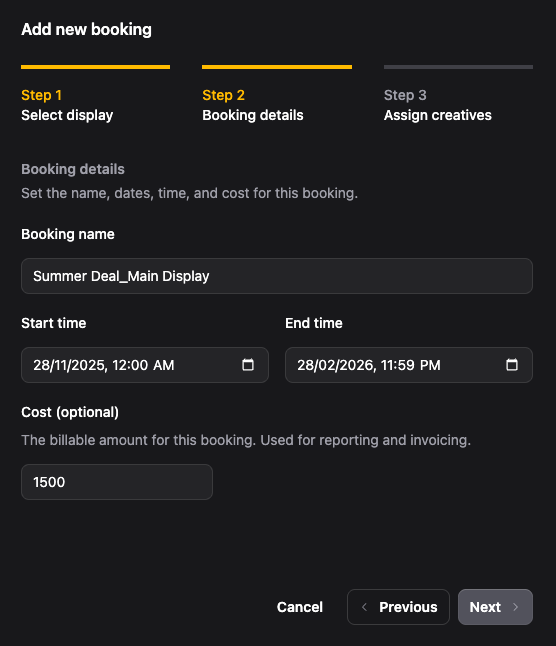
- Set booking details
- Name: Give the booking a clear name (e.g., "Window Promo — June"). Required
- Start time: Set when the booking should start. Required
- End time: Set when the booking should end. Required
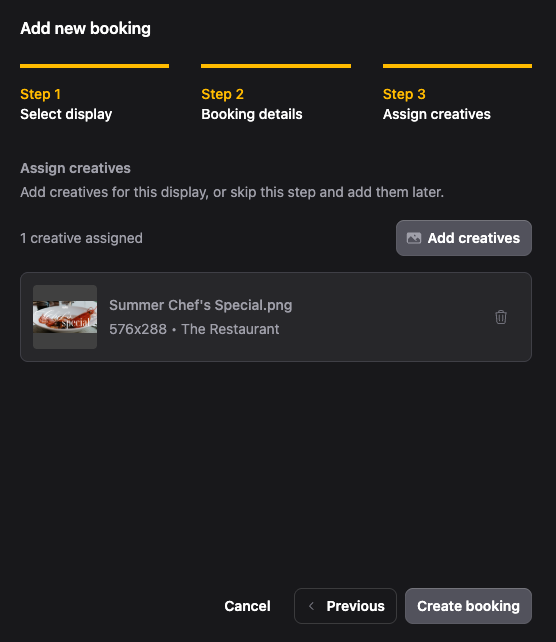
- Add creatives (optional)
- Add creative(s) from your library.
- You can skip this step if you're not ready yet and come back later to finish setting up the booking.
tip
Tip: You can skip adding creatives if you're not ready for this step. Come back later to finish setting up the booking.
- Create the booking
- Click Create booking to save.
- The booking will be saved as a Draft.
Configuring Creative Schedule Restrictions
To set schedule restrictions for creatives in a booking:
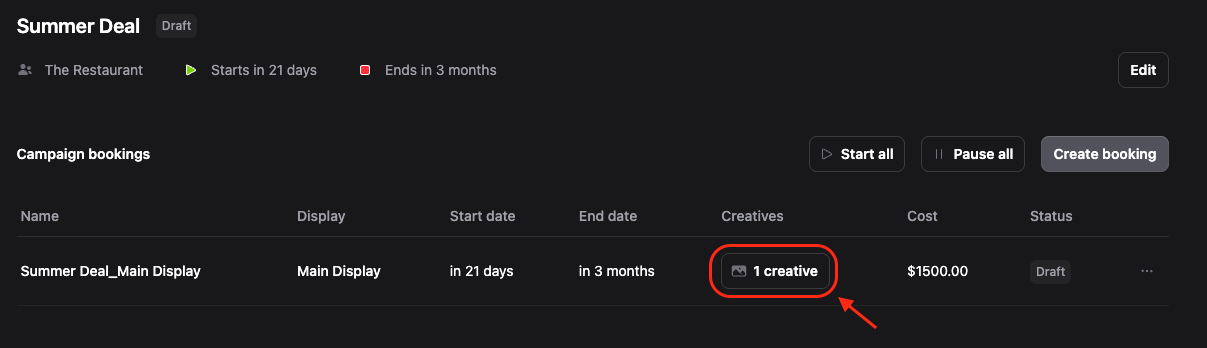
- Assign creatives to a booking
- You can assign multiple creatives to a single booking.
- Set schedule restrictions
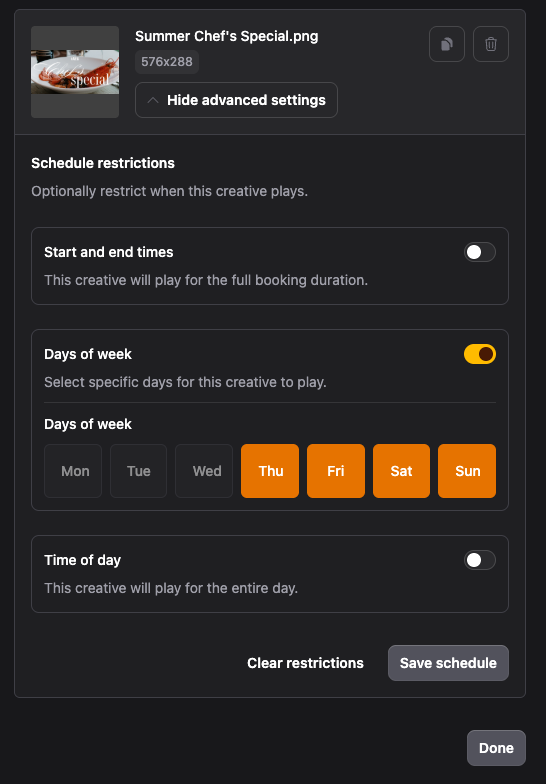
- For each creative, set Schedule restrictions (time windows, days, or date ranges) as needed.
- Start and end times: Control when the creative plays within the booking period.
- Days of week: Select specific days when the creative should play.
- Time of day: Set daily time windows (e.g., 9 AM - 5 PM).
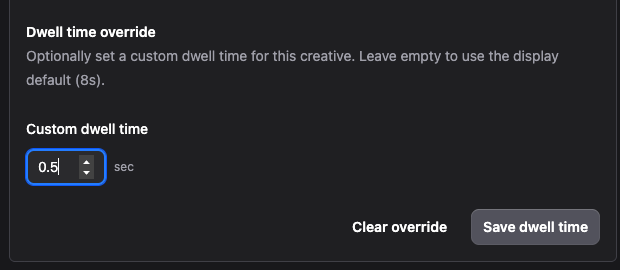
- Set custom dwell time (optional)
- Enter an amount of seconds for the content to play.
- This will override the display dwell time.
warning
Warning: Dwell time override can cause an actual play to change.
- Save the schedule
- Click the Save schedule button to save these settings, not Done.
Reusing Rules or Replacing Content
To reuse schedule rules or replace creatives:
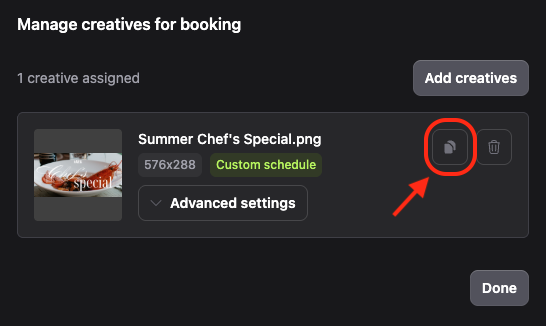
- Clone creative
- Use Clone creative to copy a creative, including schedule restrictions and other playback rules.
- This creates a duplicate creative with the same settings.
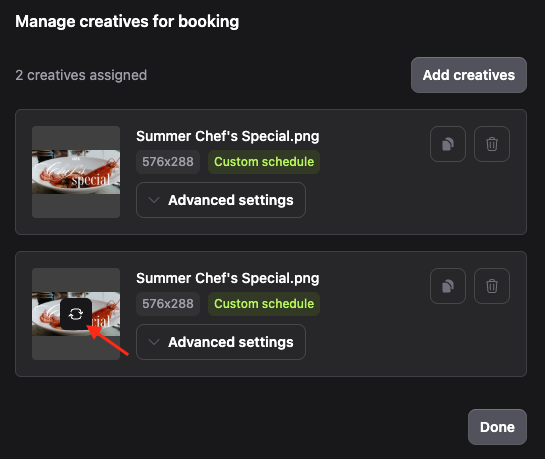
- Swap creative
- Use Swap creative to replace a creative but preserve existing schedule rules and restrictions.
- This allows you to update content while keeping the same playback schedule.
Starting or Pausing Bookings
To control booking playback:
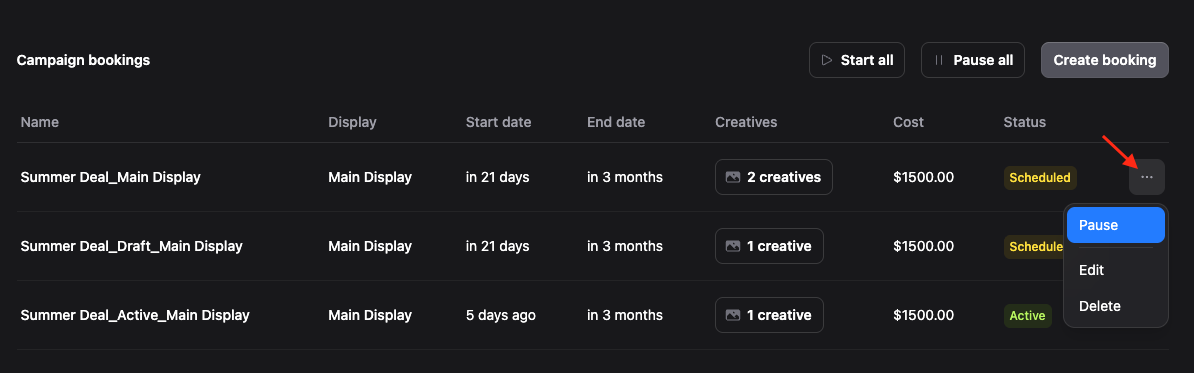
- Start a booking
- Bookings are created as Drafts. When ready, click Start to set the booking status to Active and enable playback on the targeted display.

- Pause a booking
- To stop playback, set the booking to Pause.
- The booking will remain in the campaign but won't play on the display.
info
Note: A campaign can contain bookings in mixed states (some Active, some Paused, some Draft).
Duplicating Campaigns
To copy a campaign and its bookings:
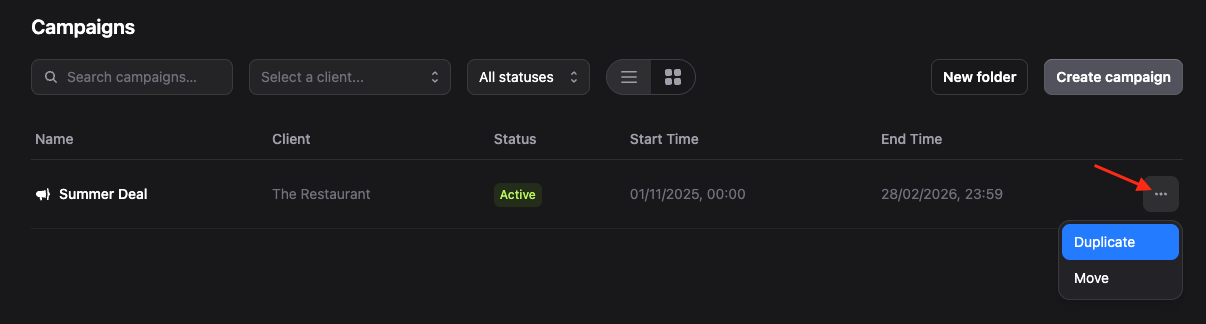
- Open the campaign menu
- Find the campaign you want to duplicate in the Campaigns list.
- Click the three dots (⋯) menu next to the campaign.
- Select Duplicate
- Click Duplicate from the dropdown menu.
- The Duplicate campaign dialog will open.
- Name the duplicate
- Enter a name for the duplicated campaign.
- Click Duplicate campaign to confirm.
info
Note: The duplicated campaign will include all bookings, so you can reassign them to a different display.