Uninstalling Player App
If you no longer need a display device connected to Playboard or want to reinstall the app for troubleshooting, you can safely uninstall the Playboard Player app from your device.
Follow the instructions below based on your operating system.
Uninstalling for Windows
- Open Settings
- Click on the Start menu and select Settings ⚙️
- Go to Apps → Installed apps (or Apps & features depending on Windows version)
- Find Playboard Player
- Scroll through the list or use the search bar to find Playboard
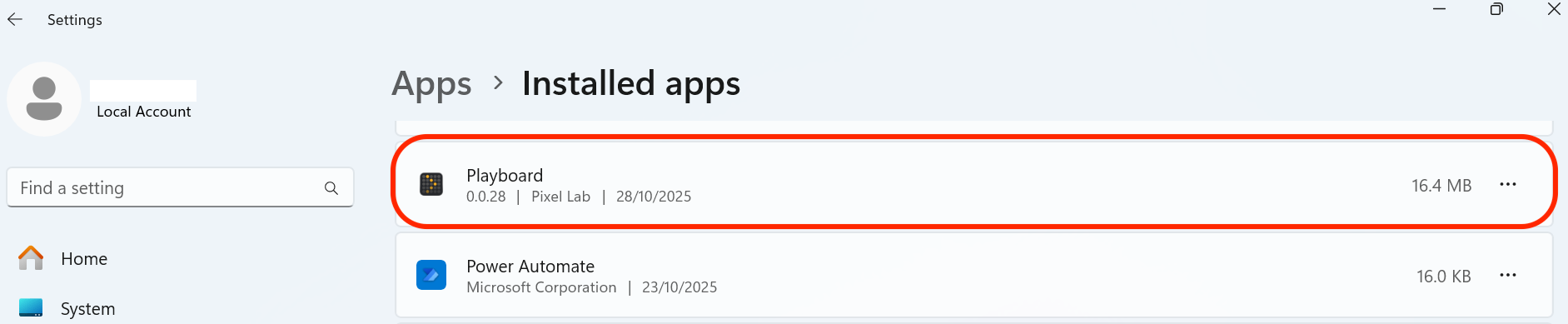
- Uninstall the app
- Click the ⋯ (three dots) beside Playboard
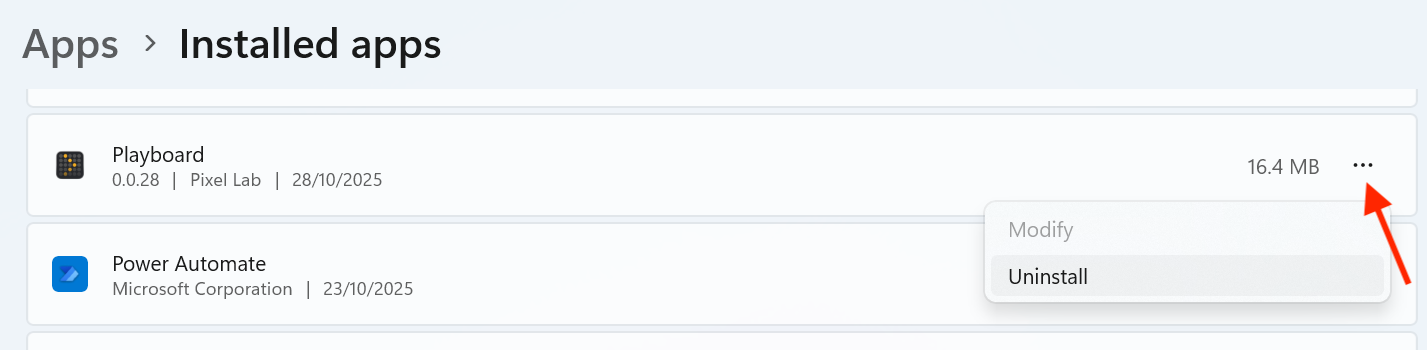
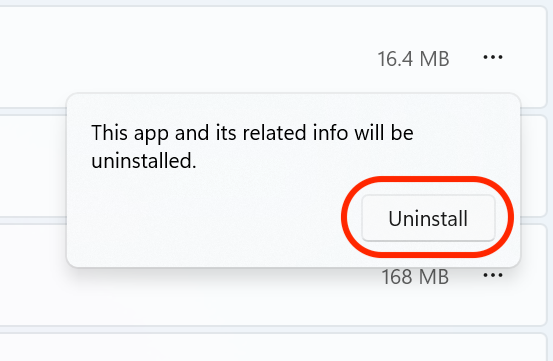
- Select Uninstall to open the uninstall wizard
- (Optional) Tick the "Delete the application data" box if you want to completely remove all settings
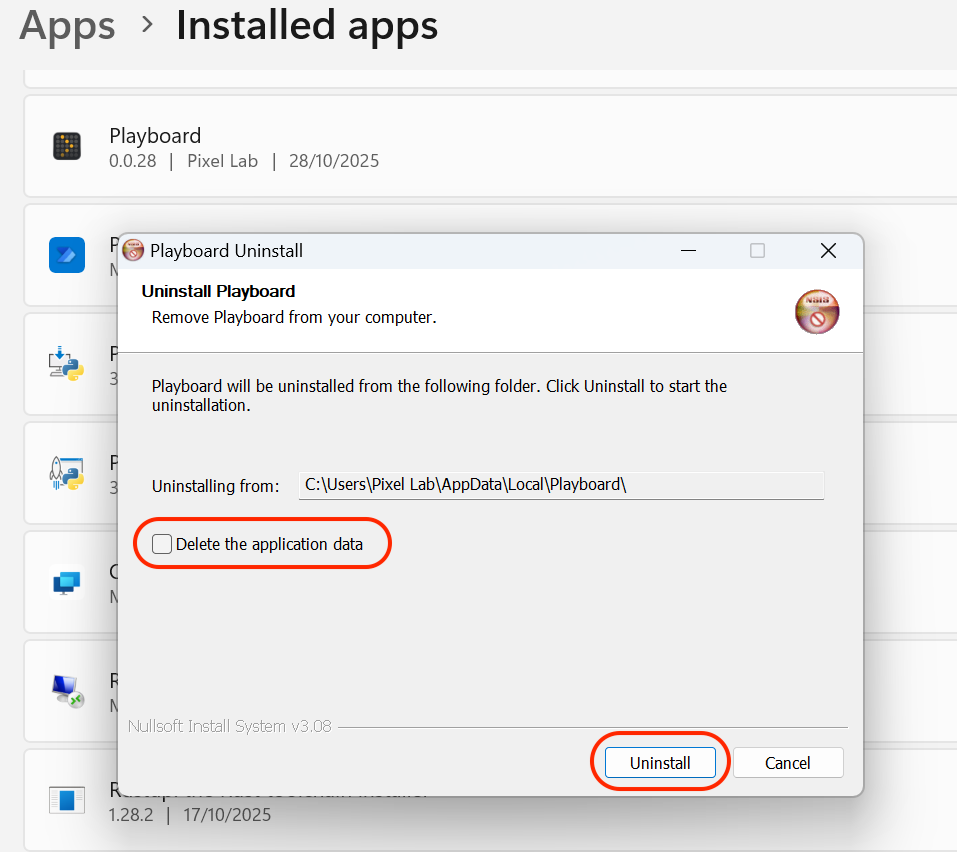
- Click Uninstall
tip
If you plan to reinstall, skip the "Delete the application data" step to keep your login and pairing settings.
Uninstalling for macOS
- Quit the app
- Make sure Playboard is not running
- Right-click the Playboard icon in the Dock and select Quit
- Open Applications folder
- Open Finder → Applications
- Delete the app
- Locate the Playboard app
- Drag it to the Trash
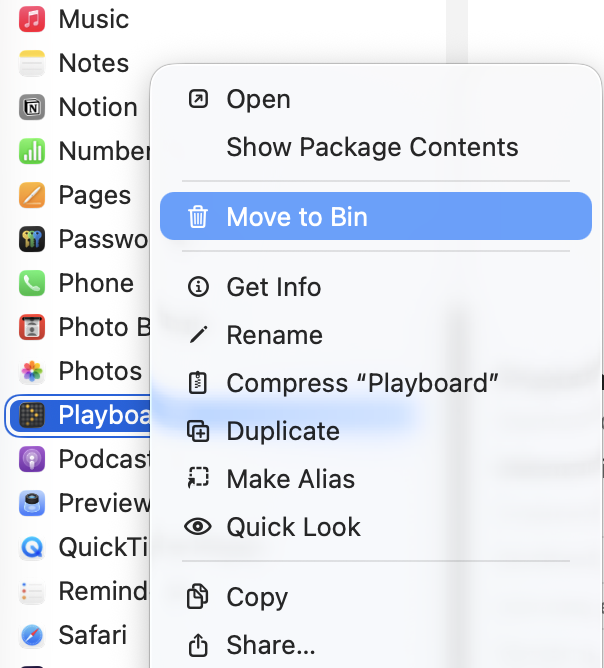
- Remove preferences (optional)
- If you want a full clean uninstall:
- In Finder, click Go → Go to Folder…
- Enter:
~/Library/Application Support/ - Delete the Playboard folder
- Empty your Trash
- If you want a full clean uninstall: