Pairing New Device
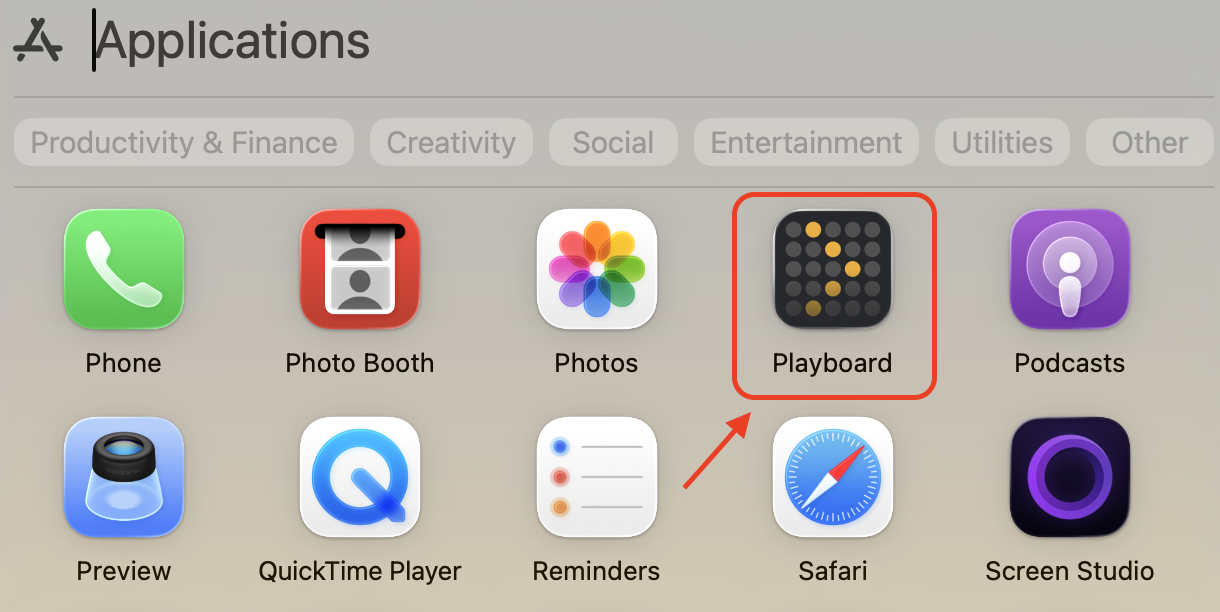
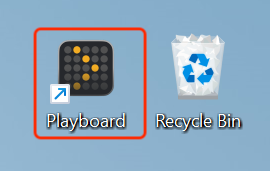
- Launch the Playboard Player app
- On your device, open the Playboard Player app from the desktop, Start menu, or Applications folder.
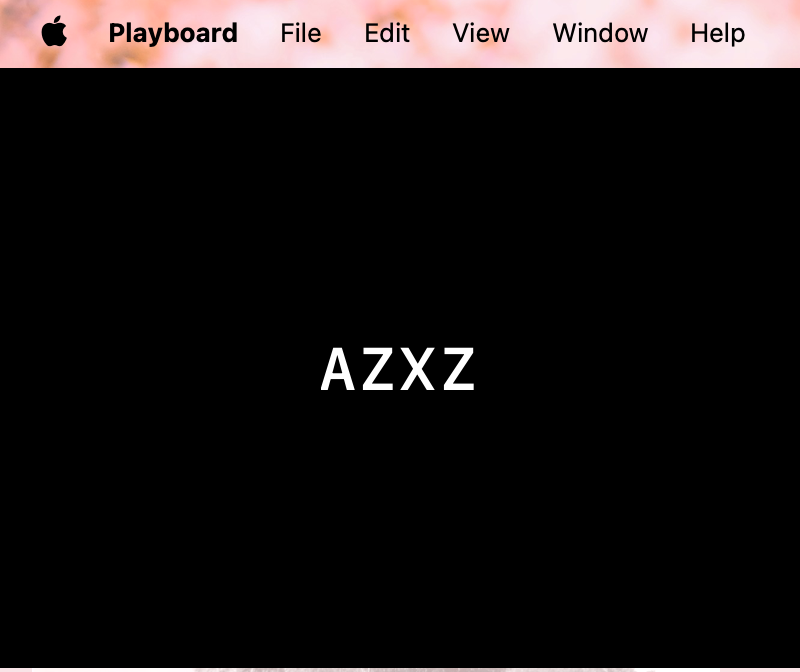
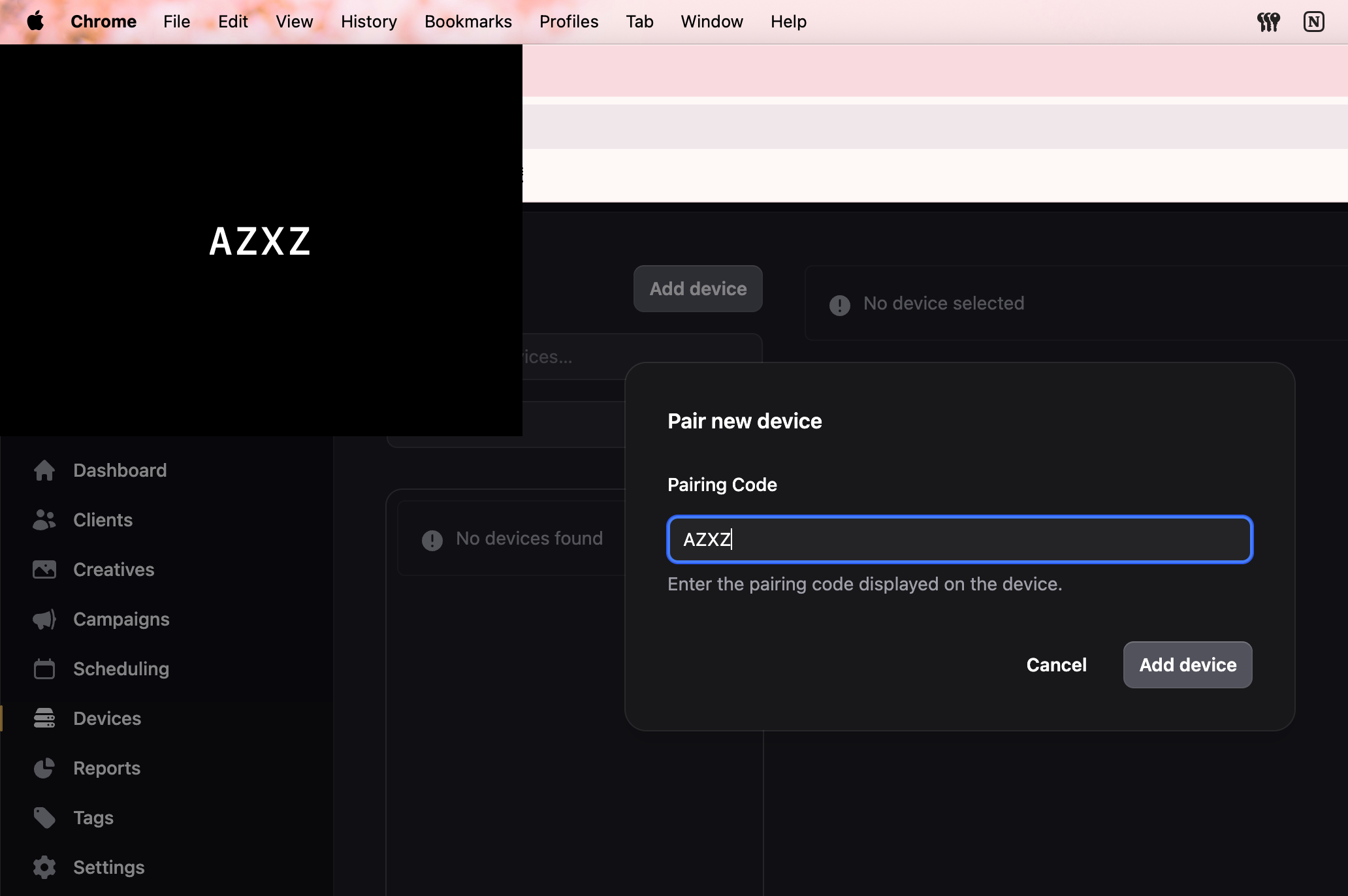
- Wait for the app to finish starting, it will show a black screen with a pairing code.
- Locate the pairing code on the Player
- On the device screen, the Player app will display a unique pairing code.
- Keep this code visible, you'll use it in the portal.
- Open Playboard web portal → Devices
- In your web browser, log in to https://app.playboard.live.
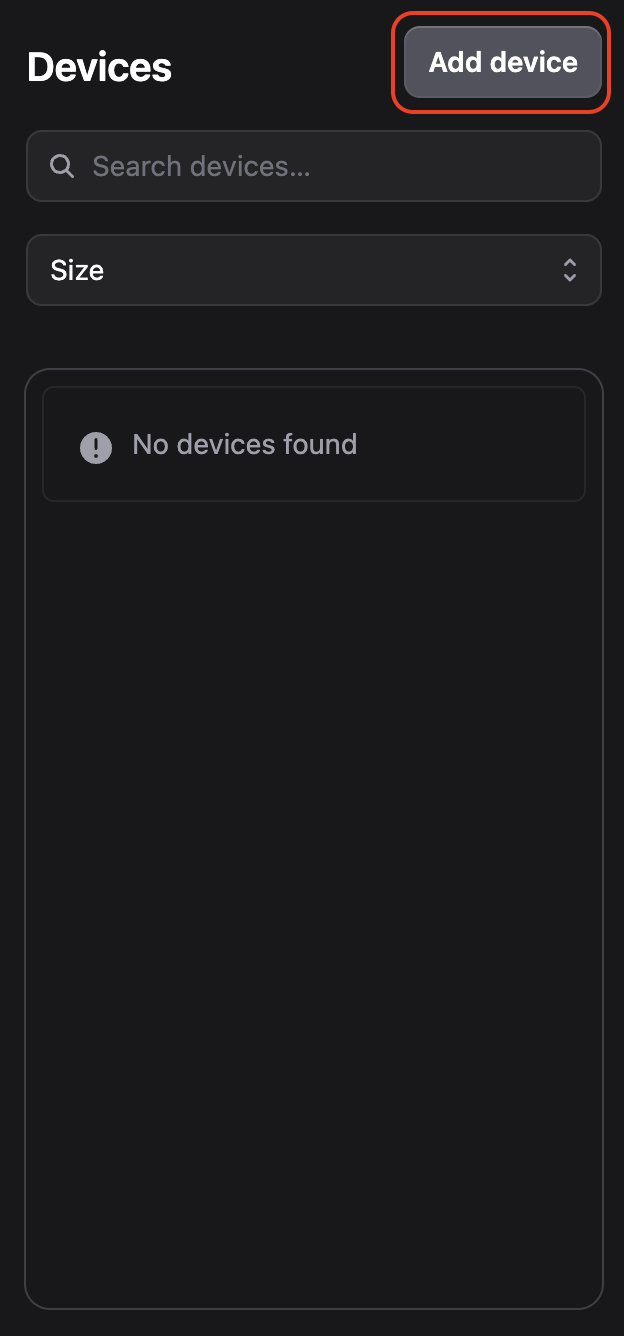
- Open the left sidebar and click Devices.
- Click Add Device button.
- Enter the pairing code
- In the dialog that appears, type the pairing code shown on the Player into the Pairing Code field.
- Click Add device.
- Complete pairing
- Once the pairing is successful, your device will appear in your device list.
- You can now start managing displays remotely from the portal.
info
Note: Make sure you have an active subscription and haven't reached your device limit. If you encounter issues, check your subscription status in Settings → Billing.