Invite Team Members
Only team Owners and Admins can invite new members. You can invite members with Admin or Content roles.
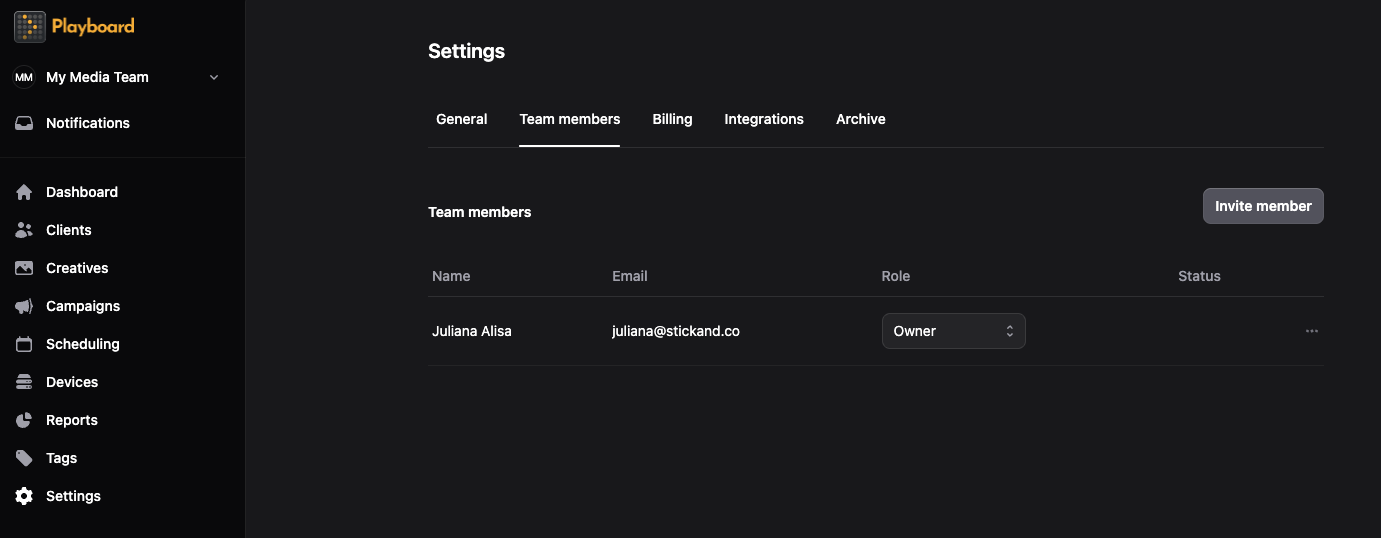
- Go to Settings → Team members
- Click Settings in the sidebar, then select Team members.
- Click the Invite member button.
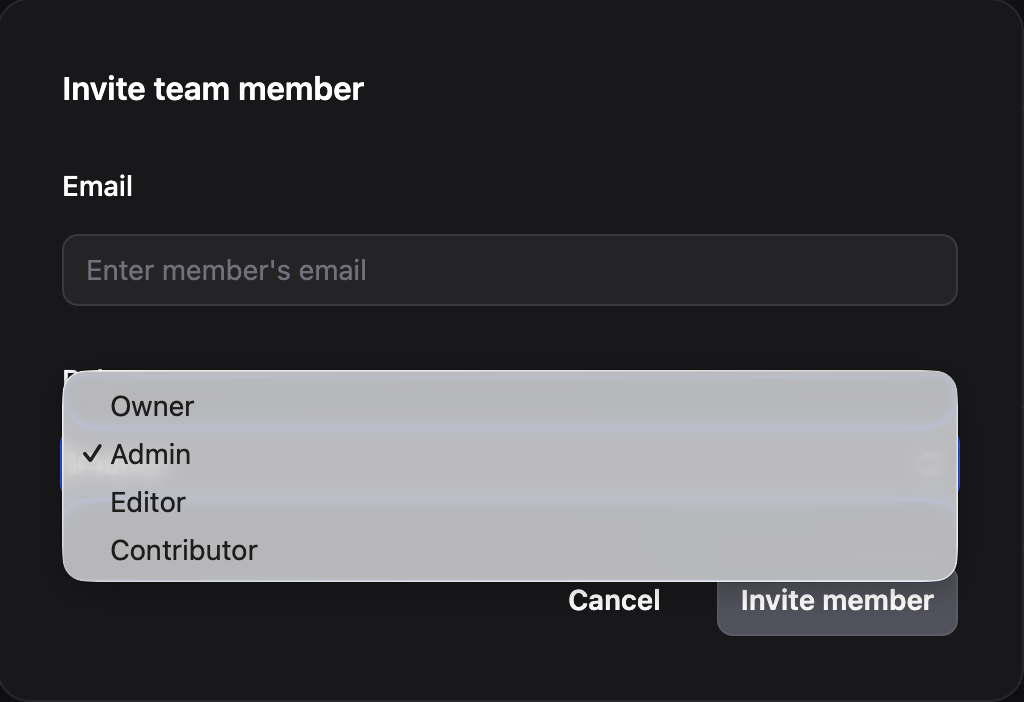
- Enter their email and select their role
- In the dialog that appears, enter the team member's email address.
- (Pro) Select their role from the dropdown.
Note: Role selection during invite is only available on the Pro plan.
- The invited member receives an email.
- New users (without a Playboard account) will receive an email invitation to create their account and complete their profile.
- Existing users (with a Playboard account) will receive a notification in the app.
Note: If the invited member already has a Playboard account, they can accept the invite directly from the Notifications page without needing to check their email.
- Accepting the invitation
- New users: Click the link in the email to create an account, complete their profile, and automatically join the team.
- Existing users: Go to Notifications in the app, find the team invitation, and click Accept.
- Managing invitations
- You can view pending invitations in the Team members table (they appear with a "Pending invitation" badge).
- You can resend the invite or Cancel the invite from the actions menu (three dots) next to pending invitations.
User Roles
Assign user roles to limit access to Playboard. Each team must have at least one Owner and you can assign the Owner role to multiple users.
Note: Some role-based access controls are only available on the Pro plan.
| Role | |
|---|---|
| Owner | Full access to all features and team management. Can manage billing and delete the team. |
| Admin | Full access to all features and team management. Cannot manage billing or delete the team. |
| Editor (Pro) | Can manage content, campaigns, creatives, clients, and reports. Cannot access devices or team settings. |
| Contributor (Pro) | Can add creatives, limited access to campaigns designated by higher roles. |
Assigning campaigns to contributor role
Users with a role of Admin or higher can assign campaigns to users with the Contributor role. This is useful when you want to provide limited access for updating content. From the actions menu (three dots), click Manage campaigns and select which campaigns to assign in the dialog.