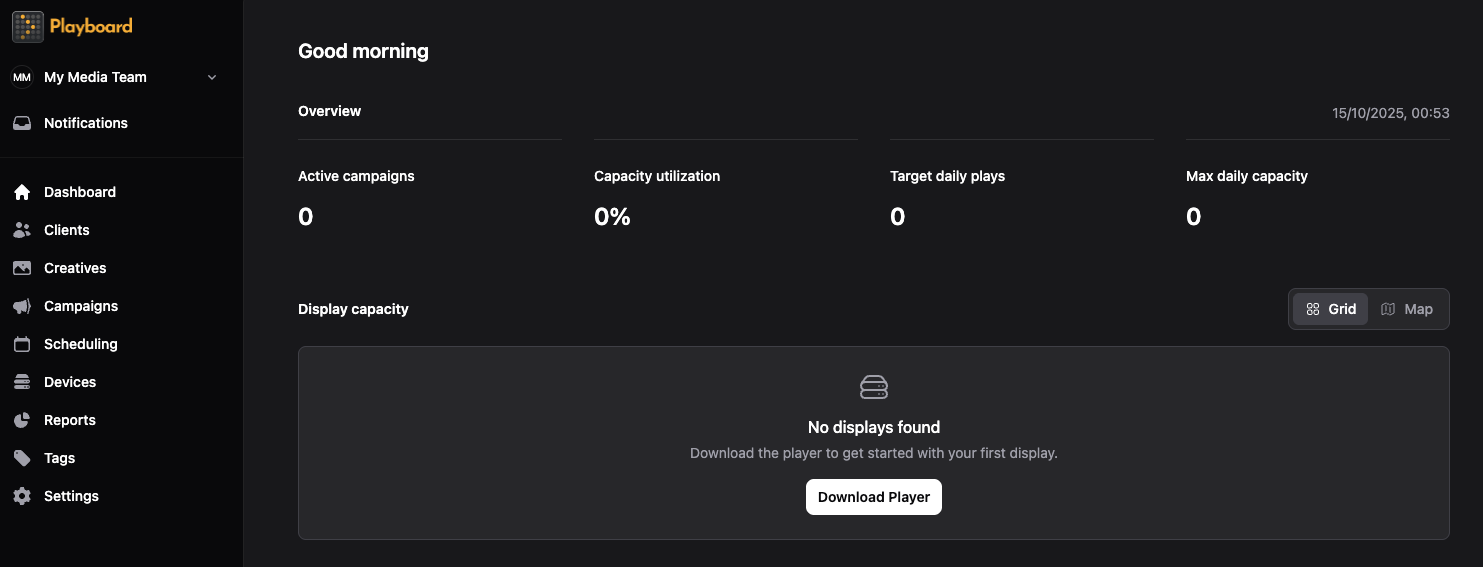
Create a New Account
Getting Started with Playboard
Sign Up
- Open the Playboard website
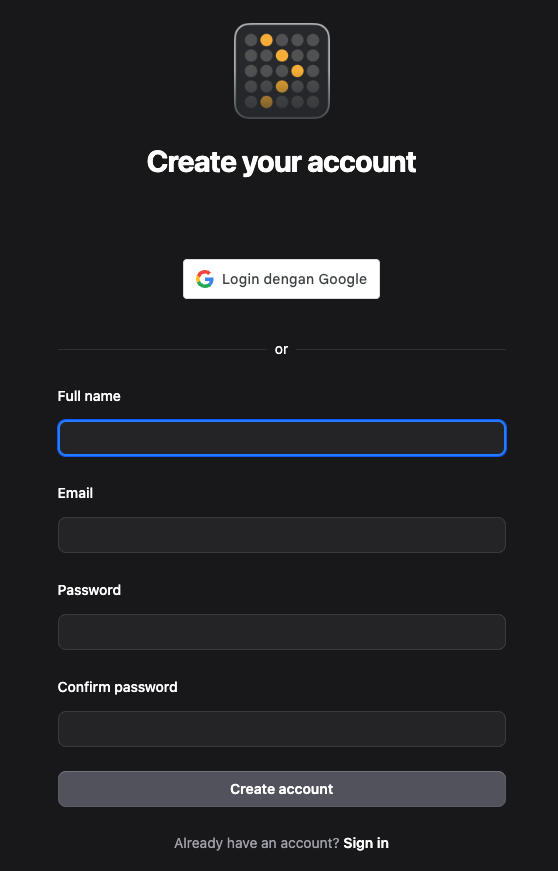
- Enter account details
- Enter your: Full name, Email address, Password, and Confirm password.
- Alternatively, you can sign up with Google using the Google Sign Up button.
- Verify your email address
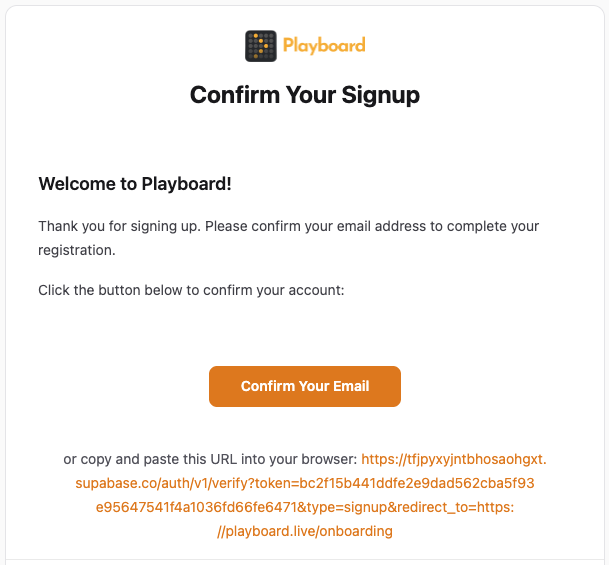
- After submitting the form, you'll see a confirmation screen asking you to check your email.
- You'll receive a verification email.
- Open the email and click the verification link.
warning
Check your Spam or Junk mail if not received within 2–3 minutes.
How to Start a Subscription
- Click the verification link
- Once you click the link, you should see the "Create your team" screen.
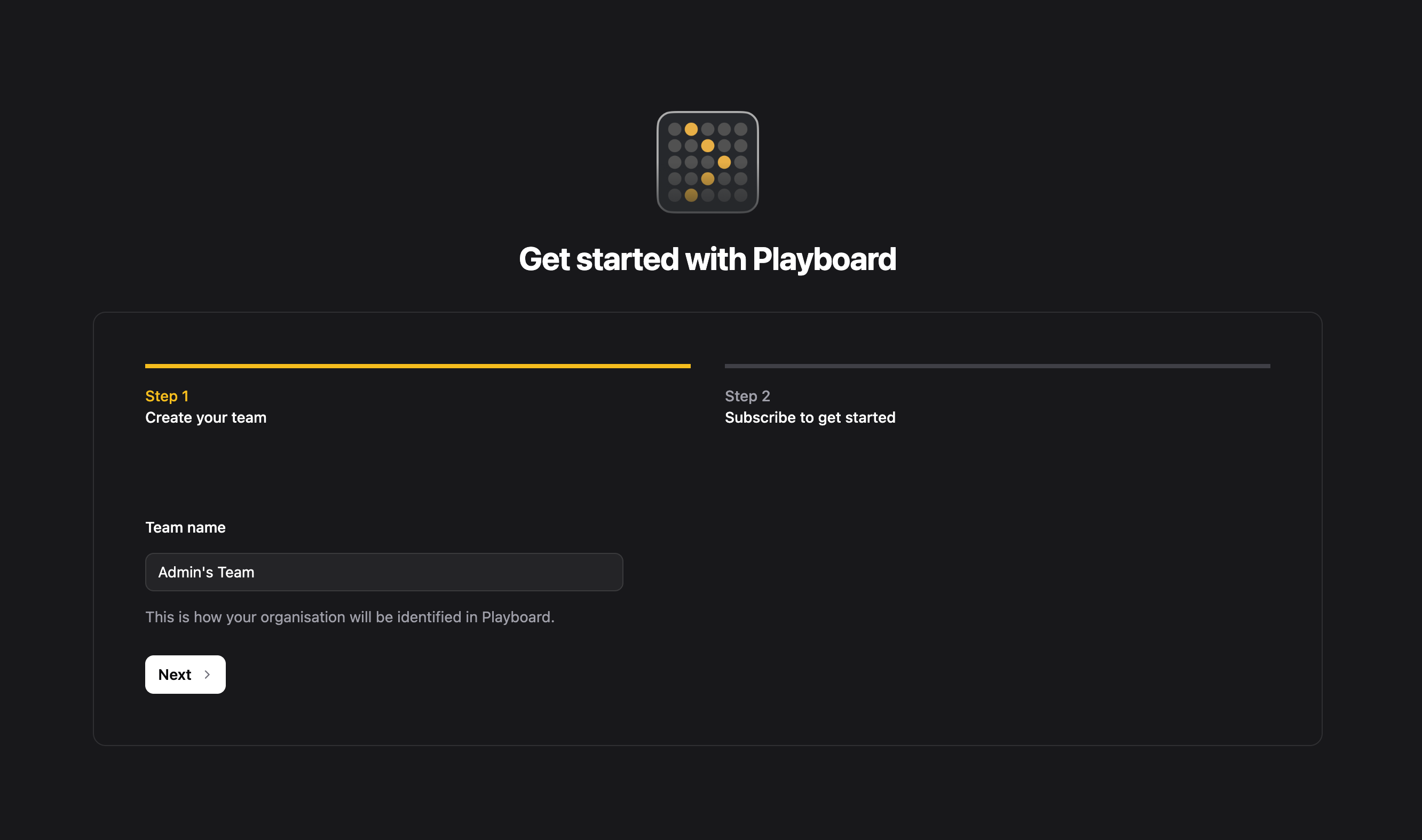
- Enter your Team name
- In the Team name field, you'll see a default name based on your full name (e.g., "John's Team"). You can keep this or change it to your organisation's name.
- Click Next to move to the subscription screen.
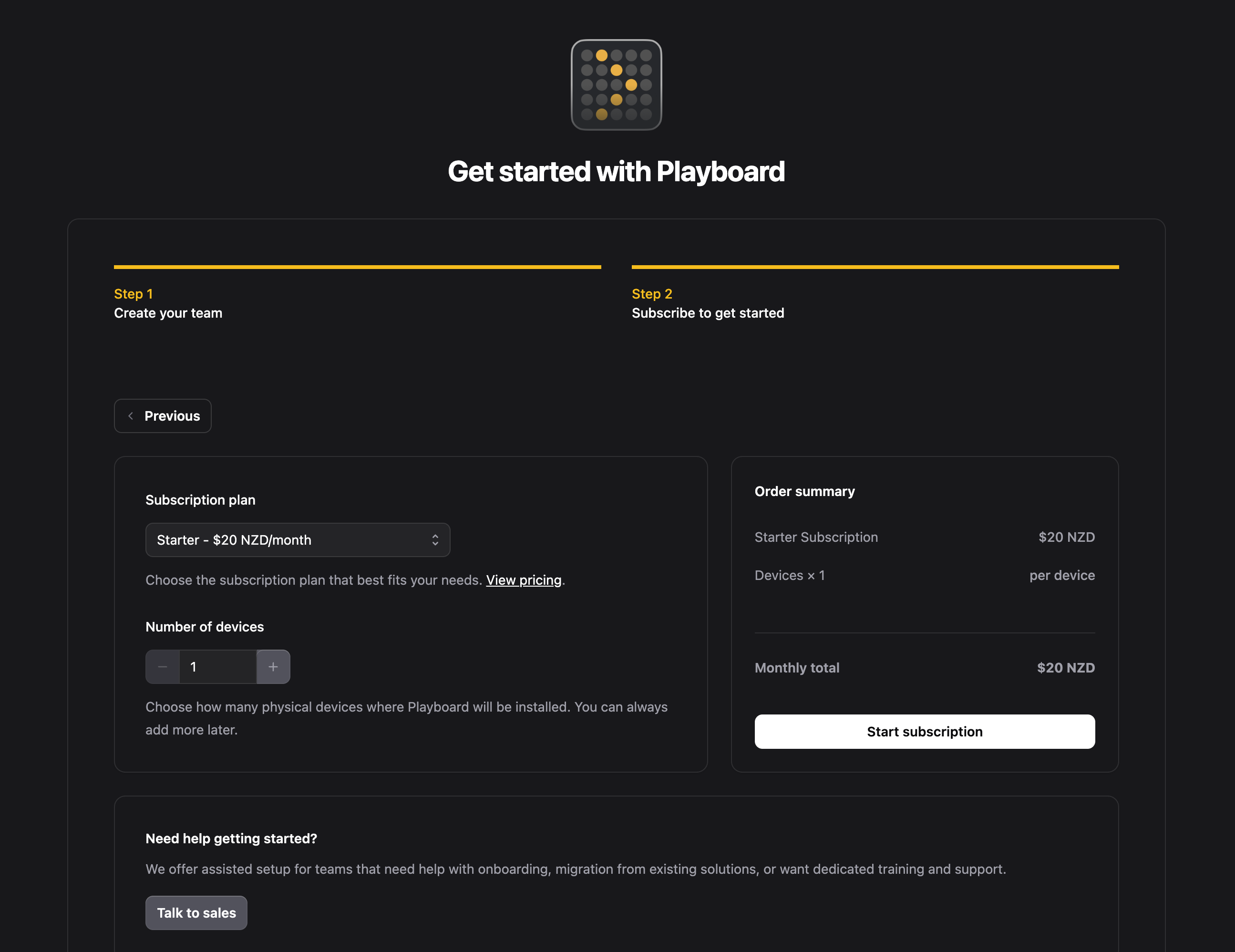
- Select your subscription plan
- Choose a plan based on the features you need. Details can be found on the pricing page.
- Choose the number of devices (subscription quantity)
- On the "Subscribe to get started" screen, find the Number of devices input.
- Enter how many physical Playboard devices you want to cover with the subscription (e.g., 1, 2, etc.).
- Note on pricing: the portal will show an order summary on the right with per-device pricing and a monthly total so you can confirm cost. Each device can manage multiple displays at no additional cost.
tip
Tip: If you're unsure, start with the number of devices you currently have installed; you can add more later.
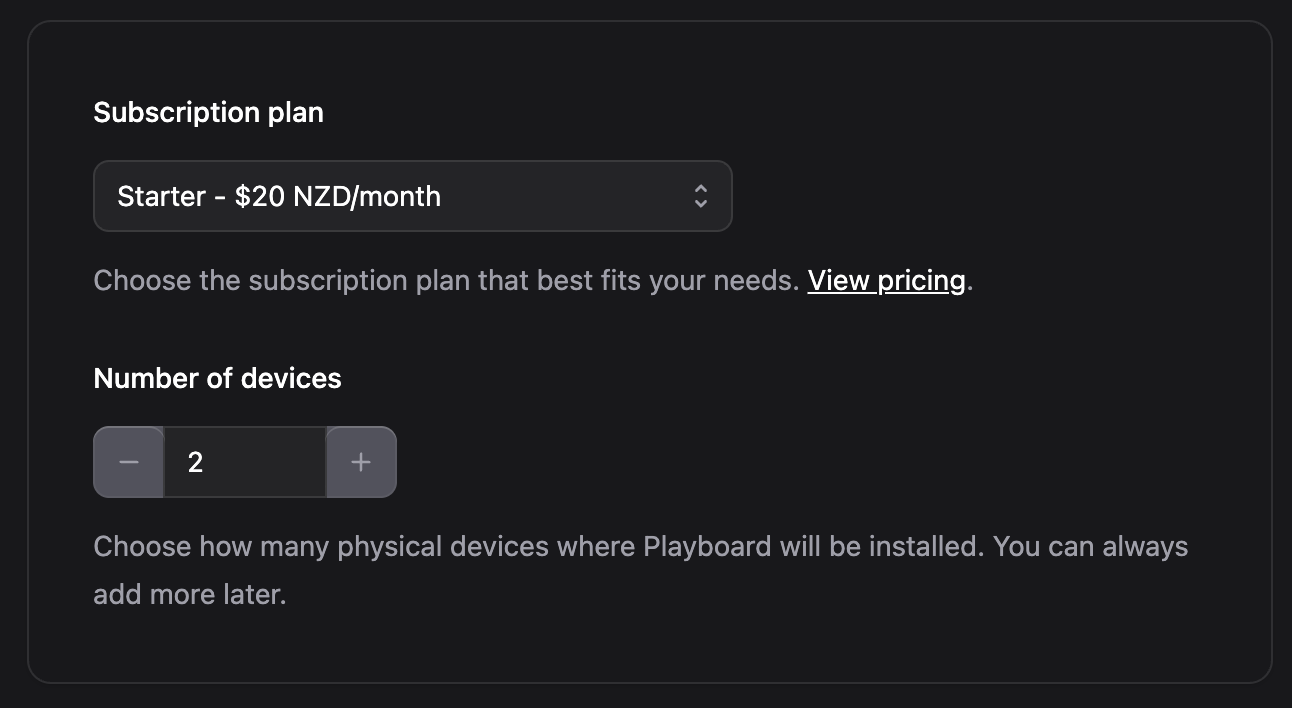
- Review Order Summary
- Confirm the selected plan, monthly total, included features, and device quantity on the order summary (right column).
- Make sure the plan and devices shown match what you want before proceeding.
- Click Start subscription
- Click the Start subscription button.
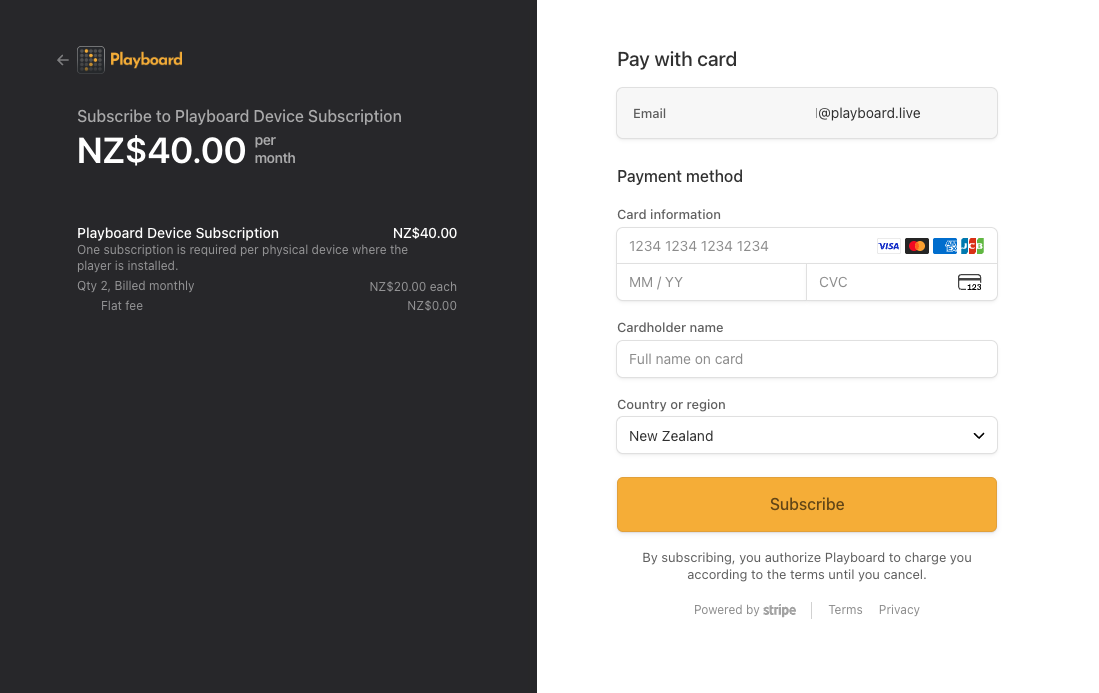
- You'll be redirected to Stripe's secure checkout page to complete payment.
- Complete Payment in the Stripe form
- On Stripe's checkout page, fill out the payment form with:
- Card number, Expiry (MM/YY), CVC
- Cardholder name (full name exactly as on card)
- Country or region (select the card's billing country)
- Verify the email field is correct (Stripe uses this to send receipts).
- Click Subscribe to submit the payment.
- After completing payment, you'll be redirected back to Playboard and automatically taken to your dashboard.
- On Stripe's checkout page, fill out the payment form with:
warning
Stripe sends a receipt to the email on file. Keep the invoice/receipt from Stripe for your accounting records.
tip
Subscription is active for the number of devices you selected, and the portal shows your plan & billing status.
Access Your Dashboard
- You will now have access to the Dashboard (Devices, Creatives, Campaigns, Reports, etc).